

7 ways to use the ‘inspect element’ tool for SEO

The Inspect feature on Chrome (also called “inspect element”) lets you check under the hood of any page or website. You can use it to diagnose problems, test changes on your site and even spy on your competitors.
Right-click on any page and scroll down to Inspect to see the code with which the site is built.
You’ll see the page on the left window and different tabs on the right with all the site’s code. You can expand and collapse elements to browse that page’s code.

From the Elements tab, you can see what the page would look like if you edited, removed or added elements. You can also find information about how a website is set up. The Console, Sources, Network and other tabs can also help with more advanced technical audits.
It helps to know basic HTML and CSS, but you can answer many basic questions just from the Elements tab if you know what kind of code to look for.
1. What color is that?
Find the unique hex code for any color on the web by using Inspect.
- Right-click on the element you want to see.
- Scroll down to find the color swatch and hex code.
- Click the swatch to play around with different colors for that element.
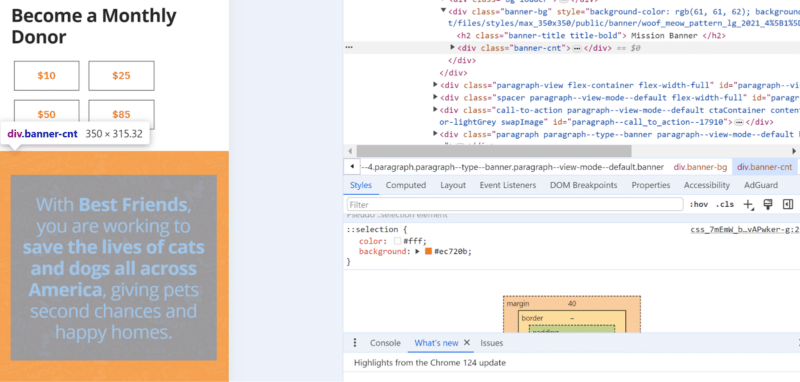
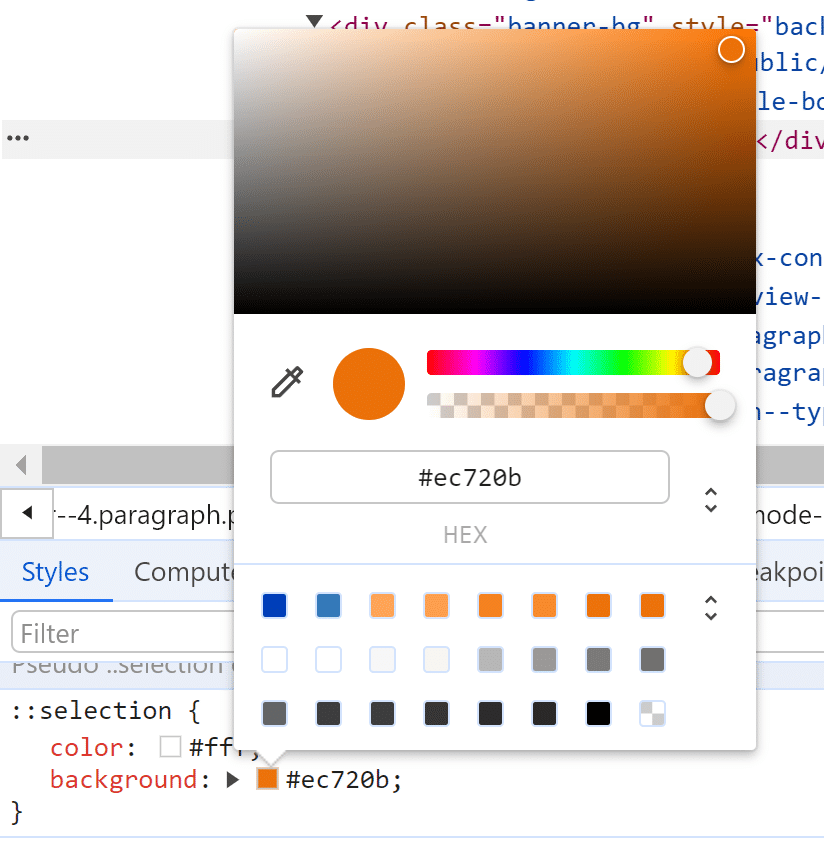
Every color has a unique hex code or a universal 6-digit code combo that represents the color. For example, pure white is #FFFFFF, pure black is #000000 and mint green is #98FF98.
If you don’t see the color you’re looking for, check for any parent element color settings that might override the child elements.
This is handy for solving questions like:
- What colors do users prefer? Can I find a fresh color to try?
- What color is my competitor testing for their call to action?
- Are my site colors following brand guidelines?
- Does that color combo follow usability guidelines?
2. What font is that?
Serif fonts are hot right now. You can find new fonts on any site by right-clicking the element and looking for the font CSS.
- Right-click the copy.
- In the Styles tab at the bottom, look for the same tag.
- Scroll down to the font tags.
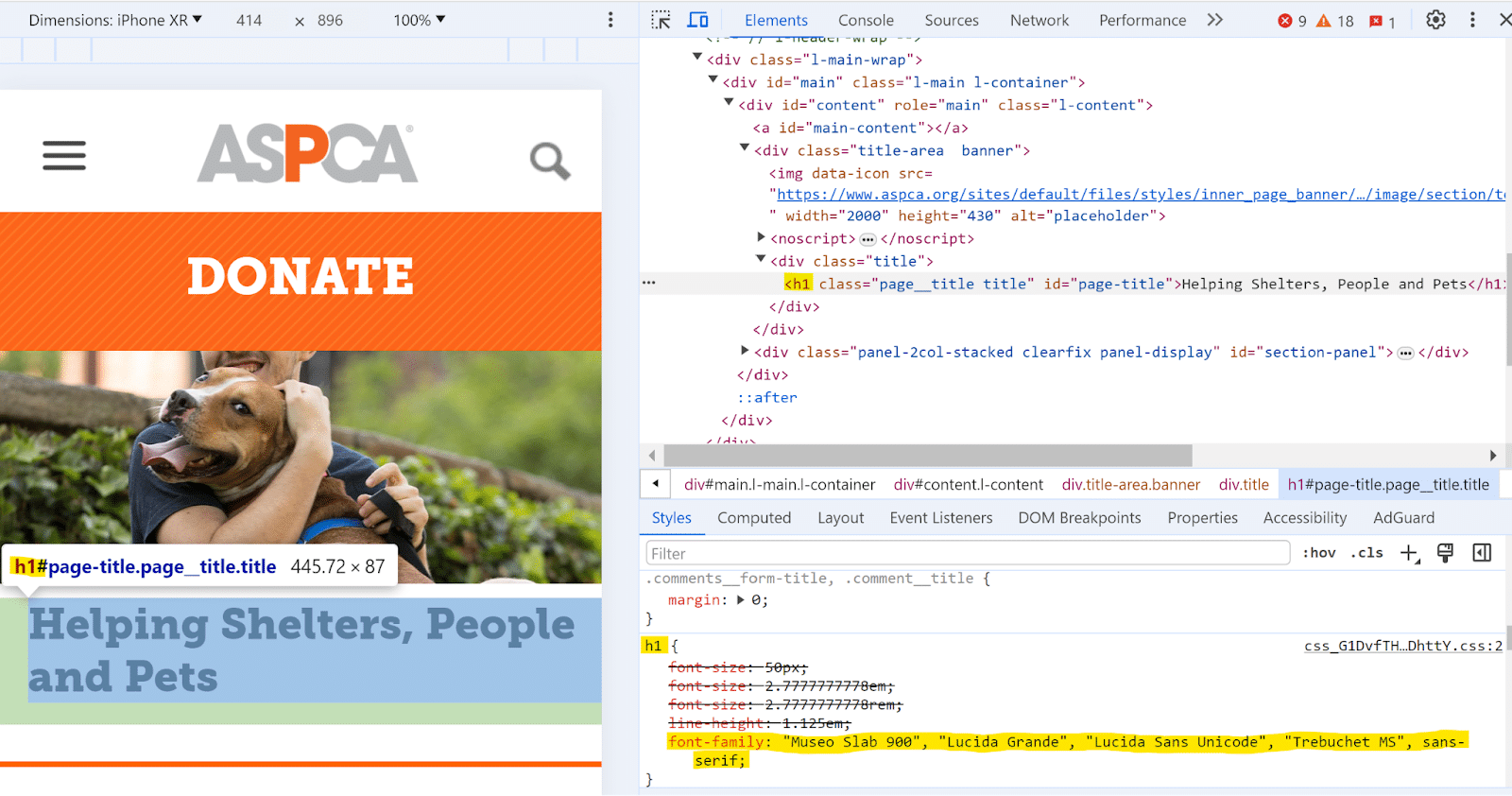
If you see multiple fonts listed in the code, those are backup fonts. The first font is the default, which will appear if the user’s browser has access to that font. If that font isn’t available for some reason, the browser will fall back to the second font listed and so on through the list.
You can also check the font size and line height too.
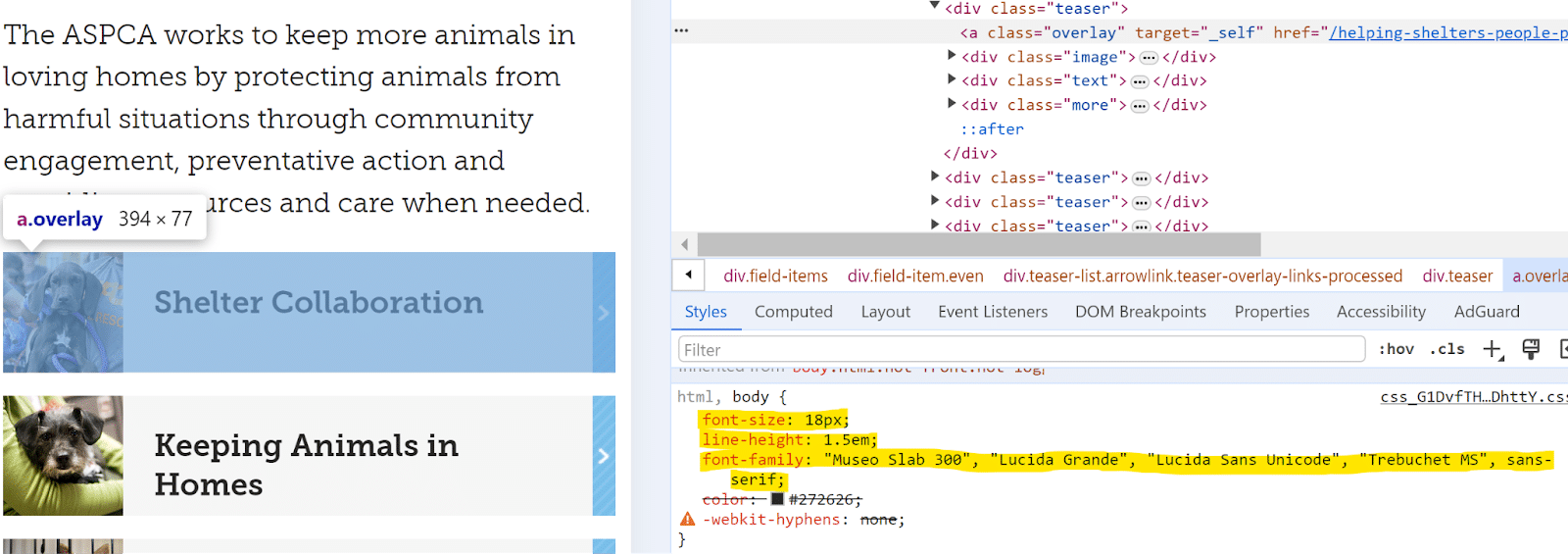
Choosing a good font size depends on the font, line height and boldness. A good rule of thumb is to aim for a minimum of 14 pixels for body copy and 20 pixels for header fonts.
- H1: 30-34 pixels
- H2: 28-30 pixels
- H3: 24-26 pixels
- H4: 20-22 pixels
- Body: 16-18 pixels
3. Will that content change look good?
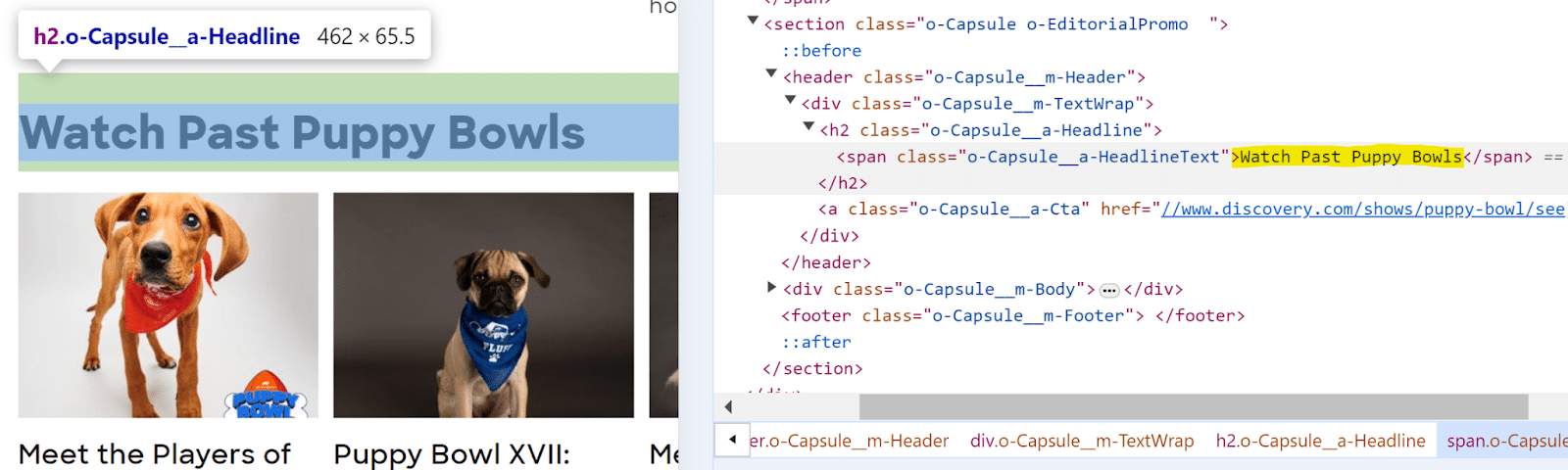
Use Inspect to see what a change will look like before going live. This is especially helpful if you need to take a screenshot to get approval before or after you go live with a page edit or if you want to check how a change will look on desktop and mobile first.
- Inspect the element you want to change.
- Double-click the copy you want to edit.
- Edit the copy.
- Click outside the element.
- Make tweaks until you’re happy with it.

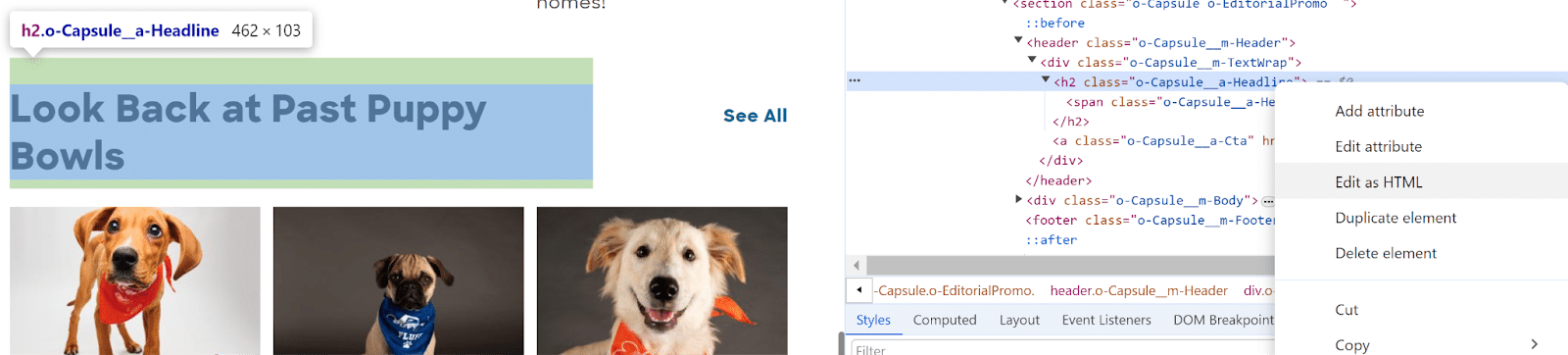
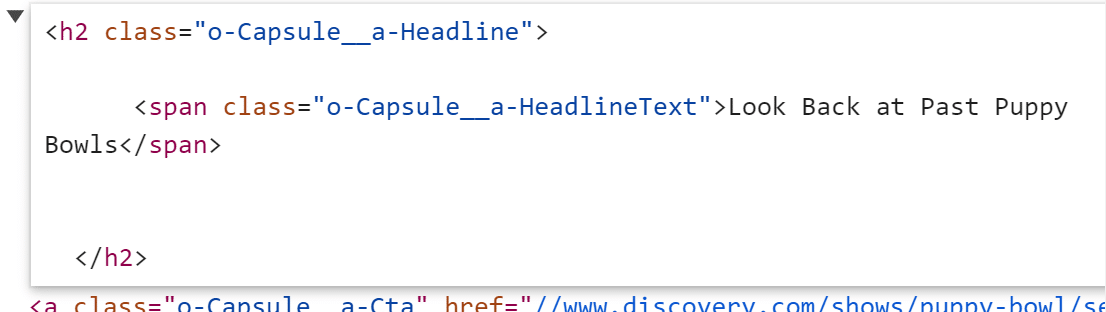
If the element you’re editing has multiple pieces of code within the element, like a link within a paragraph, you can right-click the copy and choose Edit as HTML to edit the entire selection.
4. What image is that?
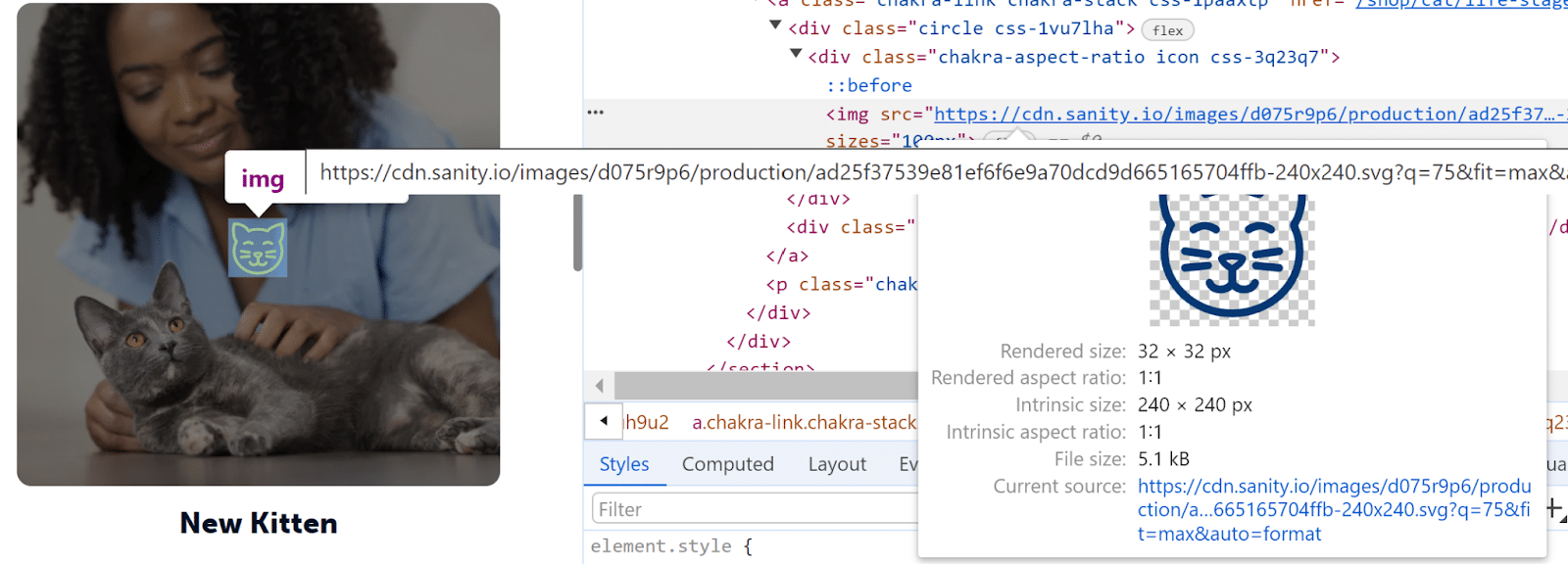
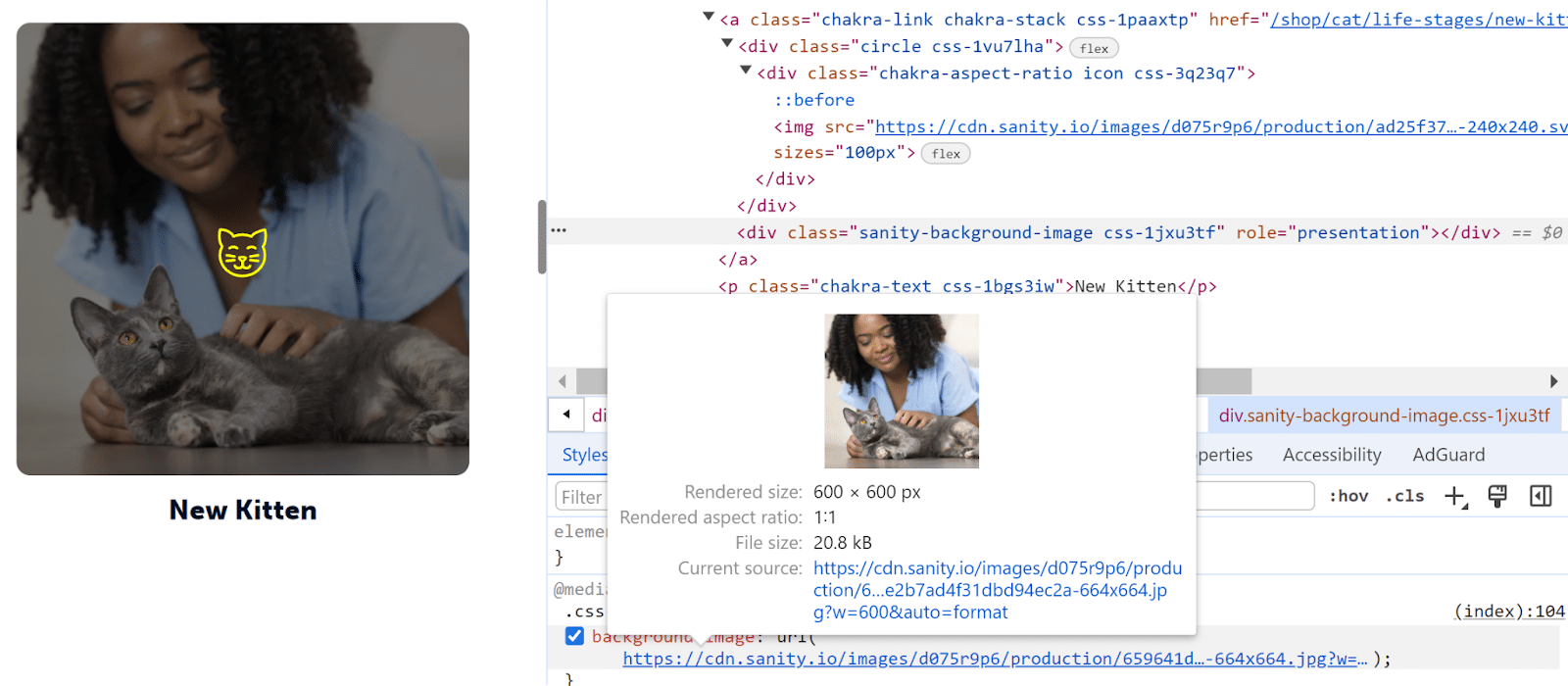
Find an image link, size and alt text by right-clicking to Inspect any image.
Answer basic technical questions about any image:
- Does my image have good alt text?
- Is that image a duplicate?
- Is the image size too large?
- Could the image size impact page speed?
- Where is the original image source?
- What kind of image is my competitor using?
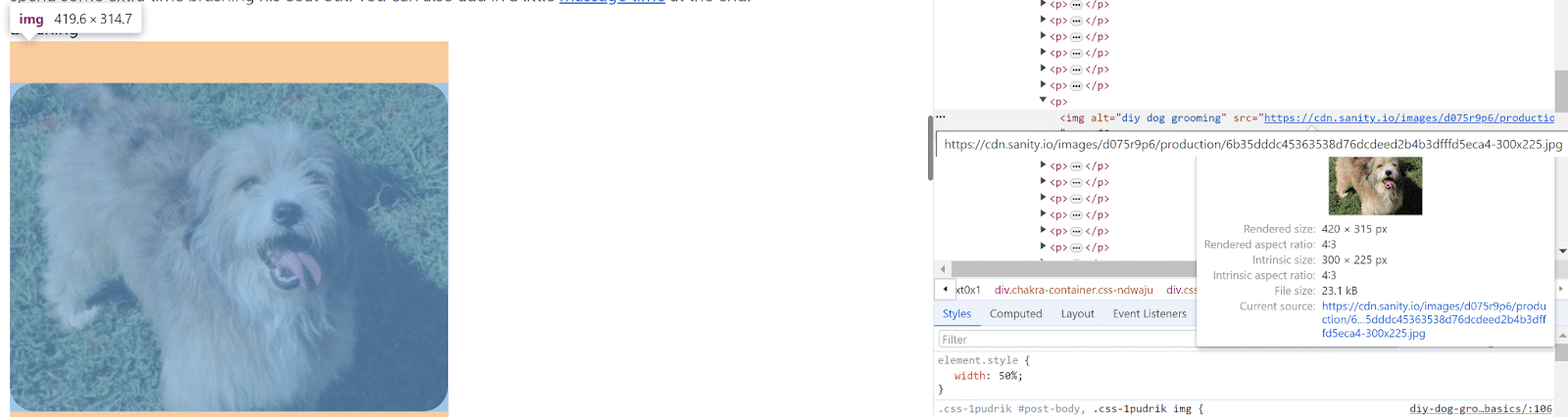
This works for any kind of image, including icons and background images. If you don’t see the image you want, look for phrases in the code like image, background, src, img, jpg, png or carousel.
5. What kind of link is that?
Use Inspect to check to see if your links are set up the way you want without actually clicking any links. Test whether links are set to nofollow or follow and if they open in the same or a different tab. Or use Inspect to find a redirect chain or 301.
- Right-click any link.
- Find the <a href> tag.
- Check what URL the target is linking to.
- Look for a tag like rel=“nofollow”, which tells Google to ignore that link for ranking purposes.
- Look for a tag like target=“_blank”, which tells the browser to open the link in a new/blank tab.

You can also confirm whether you got a new follow or nofollow backlink on another site. This is handy if you just want to check one link instead of running a check in a backlink tool like Ahrefs or Semrush.
If you check links often, you can also use browser extensions to automatically highlight different types of links depending on their tags.
6. Which piece of code is broken?
Troubleshoot issues with your site elements using Inspect. Once you figure out which piece of code is causing an issue, you can solve the problem.
If you need to work with your developers or technical team to fix the problem, it’s easier to be able to highlight exactly what you need within the code.
- Right-click anywhere on the element.
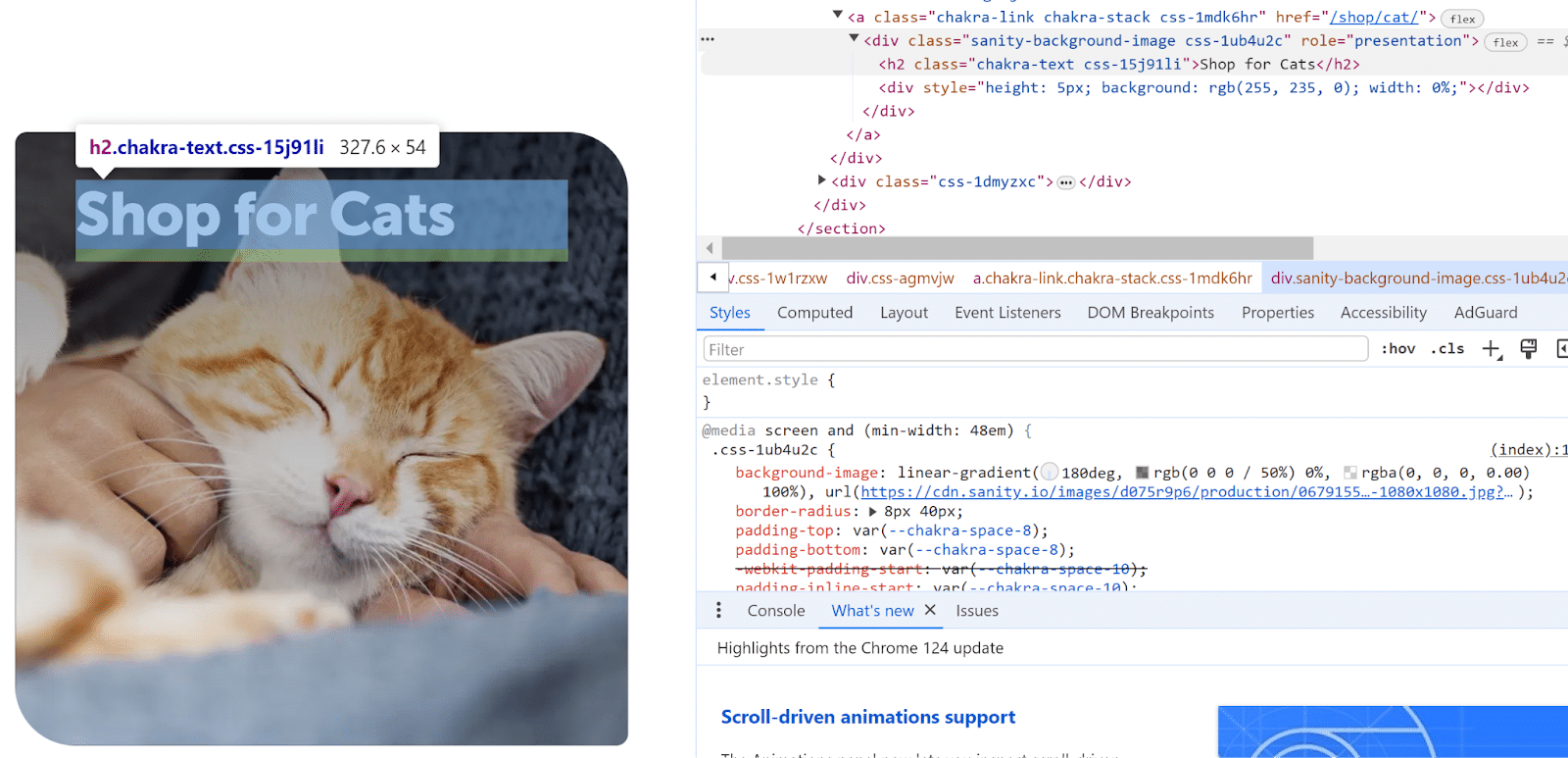
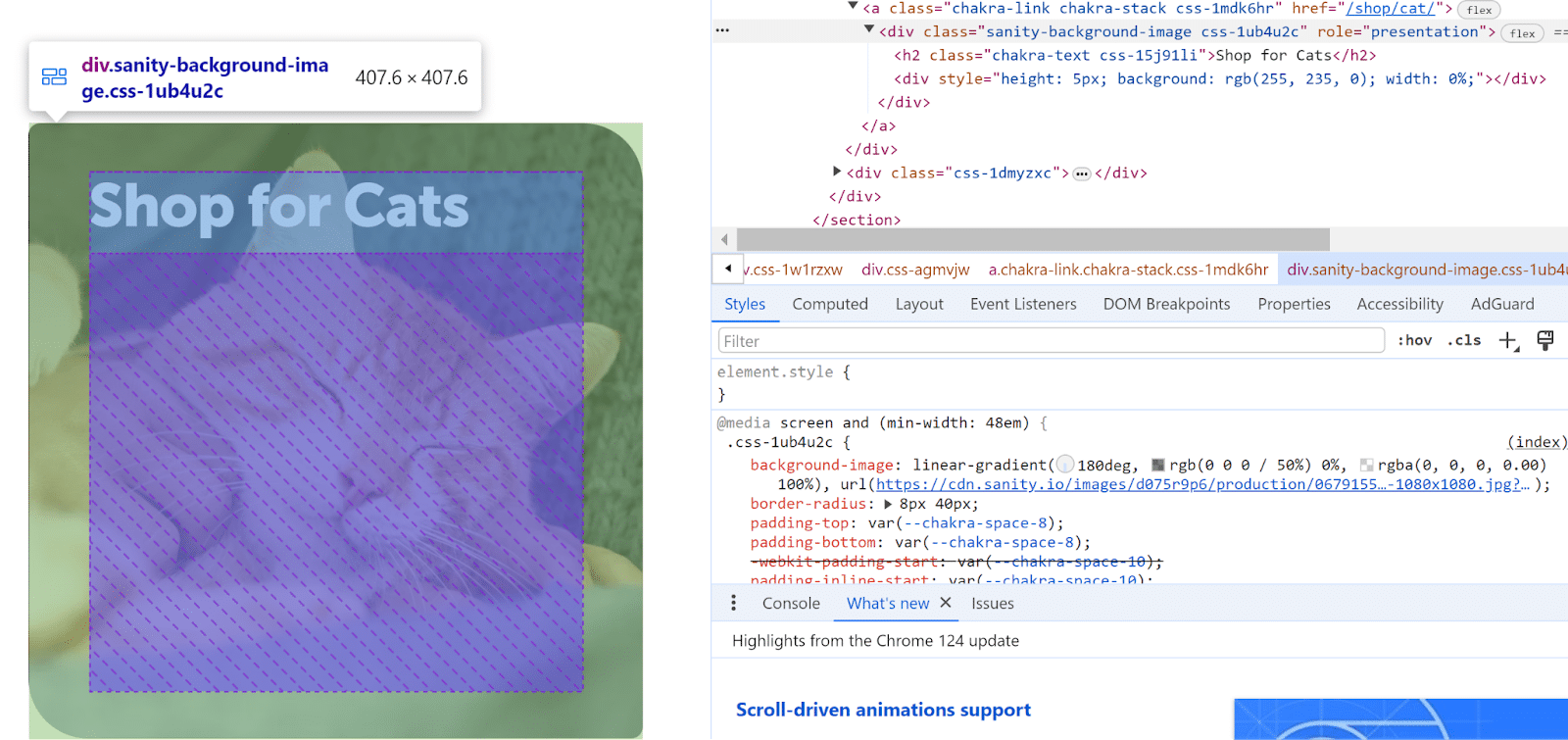
- In the Elements sidebar, hover over each HTML element to find the one you want.
- Use the arrows to expand sections to see child code elements.
- The element that the code corresponds to will be highlighted on your site in the left window. Keep hovering and expanding until you find it.
7. What kind of schema is that?
Most sites let you check their site schema using Schema Validator. However, some sites block the Schema Validator bot from using the Fetch URL option directly.
You can still check your competitors’ site schema with this tool or directly into the code.
- Go to the page you want to check.
- Right-click anywhere on the page and click View Page Source.
- Select all the page code (Ctrl+A and Ctrl+C).
- Go to https://validator.schema.org/.
- Click Code Snippet.
- Paste all the code (Ctrl+V).
- Click Run Test.
- You’ll see all the detected schema elements for that page.
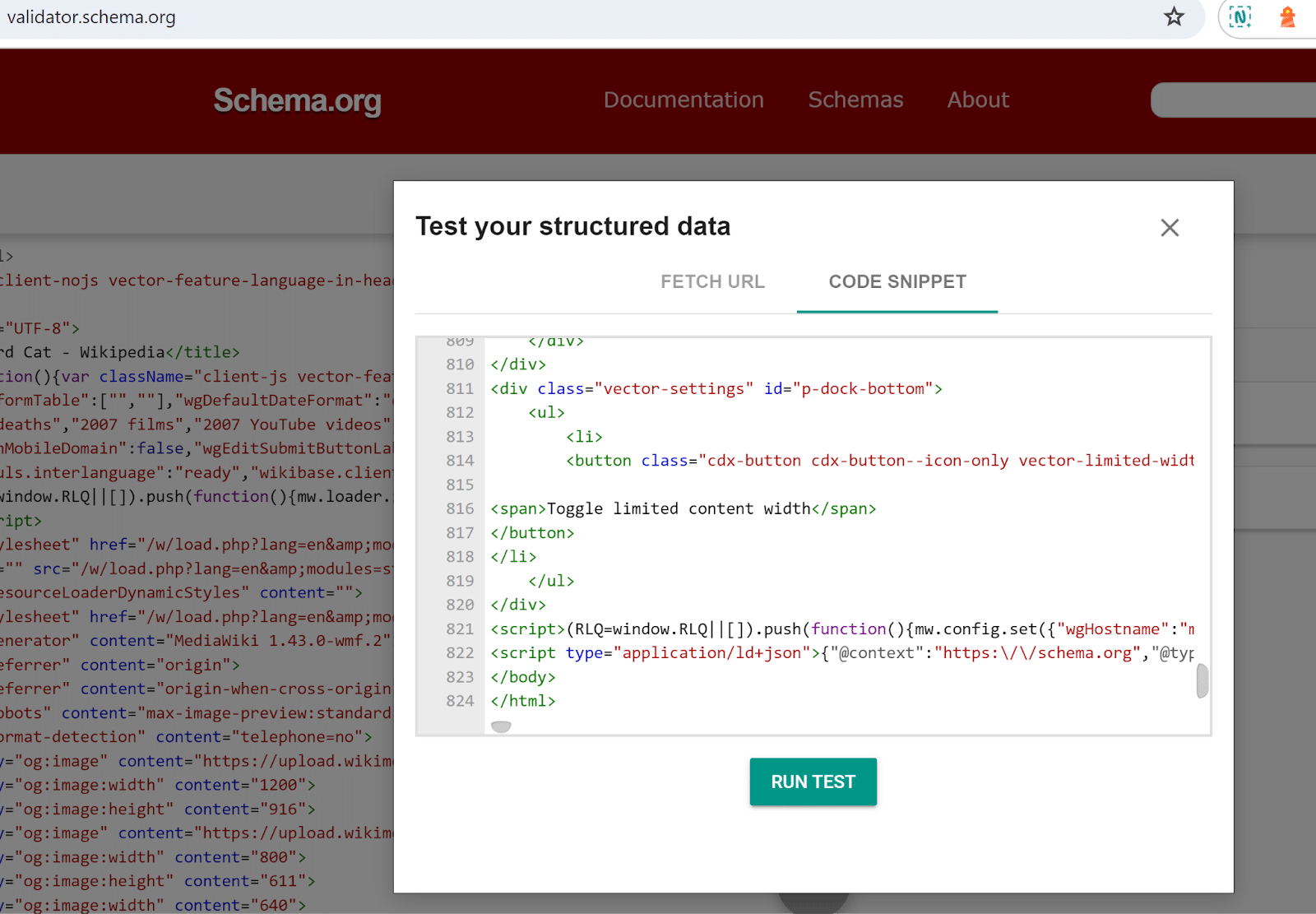
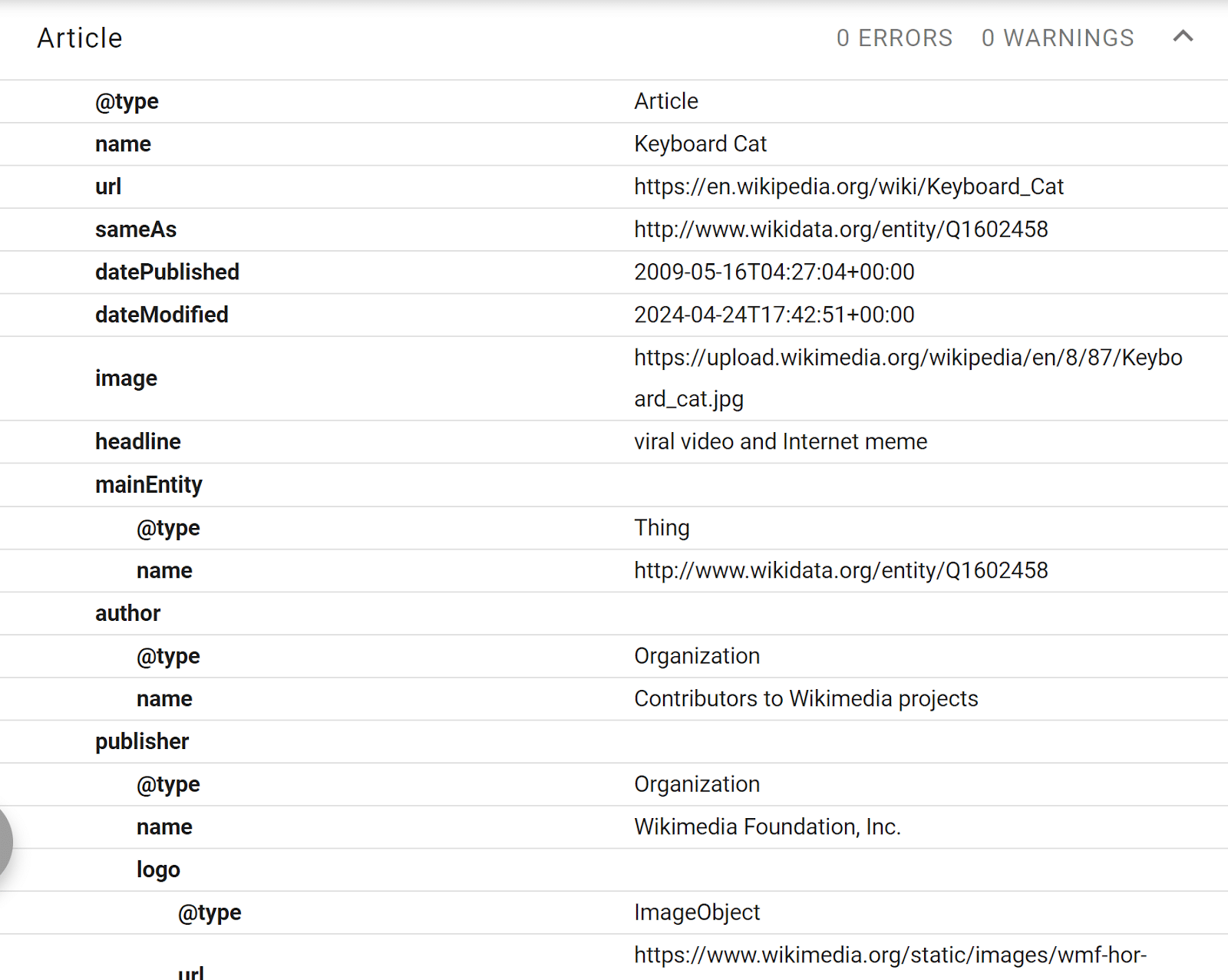
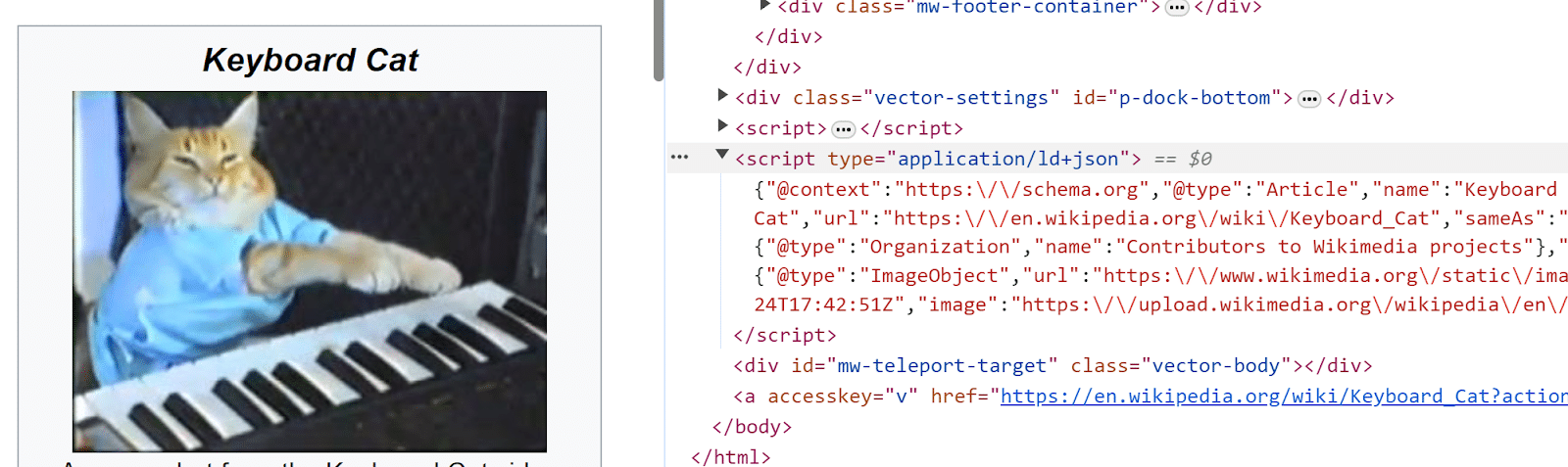
If the validator tool seems incorrect or flags broken schema, you can check for any schema-like code directly in the markup. This is helpful if you’re trying to troubleshoot schema fields or discover why your schema isn’t appearing in the SERP.
- Right-click anywhere on the page.
- Expand sections in the Elements tag until you find the schema.org tags. Schema is usually contained somewhere in the <body> tag.
- If it’s not organized cleanly, right-click and edit as HTML, then copy the whole block into a Notepad program.
- If you still don’t see it, right-click on the page to View Page Source, then search for “schema” in the page code (Ctrl+F).
Courtesy of Search Engine Land: News & Info About SEO, PPC, SEM, Search Engines & Search Marketing
Category seo news | Tags:
Social Networks : Technorati, Stumble it!, Digg, de.licio.us, Yahoo, reddit, Blogmarks, Google, Magnolia.
You can follow any responses to this entry through the RSS 2.0 feed.