Archive for the ‘seo news’ Category
Friday, February 2nd, 2024
Google today released the third iteration of its SEO starter guide. This version is about half the size of the second version and is primarily written for people who are SEO newbies.
Google’s SEO Starter Guide was originally released in 2008 as a PDF version. It was last updated in 2017.
What changed. Google announced that the new version is “pocket-sized version of the SEO Starter Guide.” Google also said this new version has “a better focus on a starter audience and the topics we think a person who’s just dipping their toes in SEO should focus on and why.”
Google removed:
- Glossary section: In its place, Google explained the individual terms in context on the page.
- Structured data section: Google removed this section because it said this is “more of an advanced topic that starters don’t have to think about.” Plus Google said “if someone is using a content management system (CMS) like Wix or Squarespace, they might try using a plugin and not have to worry about learning how to add code to their website.”
- Mobile-friendliness section: Google said, “most new sites and platforms are already mobile friendly,” so Google decided this was not needed anymore.
- Analyzing site performance section: Google removed this to keep the document focused on starter SEOs and said this would be a “next step” SEO job and is “more of an advanced topic.”
Google added:
Google compressed a lot of content including:
- “Are you on Google” sections: Simplified to one section that focuses on a quick way to check if your site is on Google, and on the first steps a site owner should take if they don’t see their site in Google Search results.
- “Do I Need and SEO” section: Google has a standalone document so Google compressed it into two sentences and linked out to the full guide.
- Title links and snippets section: Google shortened this section considerably in favor of the more comprehensive standalone docs.
- Images section: For a starter audience, alt text is the more important guidance.
- “Opt out of Google Search” section: Google said, “while it’s an important topic that should be mentioned, it’s probably not why the reader is working their way through the guide.”
- Links section: Google compressed this section without changing the message about them, and highlighted their useful aspects and why linking is helpful for users and search engines.
- Promoting a site: Google also compressed this section while linking out to Google for Creators, as they have a more detailed guide on this topic.
- Site structure section: This section was mostly kept unchanged, but Google removed these sections:
- Navigation section: Instead, focused on linking important onsite URLs more aggressively.
404 section: Google said, “we really don’t care about 404 pages and site owners should just do whatever makes sense for their users.”- Explicit setup for breadcrumbs: This is more of an advanced topic, so Google removed it.
More to come. Google added that it hopes to never change this starter guide but it will “continue making our documentation clearer and easier to understand in the coming months.”
Why we care. The Google SEO starter guide is something many new and old SEOs have read at some point in their career. Now that it was updated, you all should probably take a quick look through it to see what changed.
If you want to see the old version, here it is in the Wayback Machine and you can compare it to the new live version.
Courtesy of Search Engine Land: News & Info About SEO, PPC, SEM, Search Engines & Search Marketing
Thursday, February 1st, 2024
Google Ads’ Solutions script templates are now easier to create and access.
Solutions can now be found under the “Bulk Actions” menu in Google Ads, allowing users to swiftly create automated and customized workflows for tasks such as:
- Confirming link functionality.
- Automatically adjusting campaign budgets.
- Generating reports.
- Receiving notifications on account performance changes.
Why we care. Knowing shortcuts to access this feature can save you time and enhance your efficiency in navigating Google Ads.
Solutions explained. Google Ads’ Solutions script templates save advertisers time by facilitating rapid report generation and efficient campaign management without manual intervention or changes to a website’s code. However, it’s essential to note that utilizing this capability involves giving more control to Google, a consideration not all advertisers may be comfortable with, as Google’s primary objective is obviously to maximize its own revenue.
Solution types. Script Solutions are available for the following uses:
- Reports
- Bidding
- Tools
- Optimisation score
- Alerts
First look. The new placement of the Solutions feature was first spotted by Senior Performance Marketing Manager and SMX Next speaker, Thomas Eccel, who shared a screenshot on X:
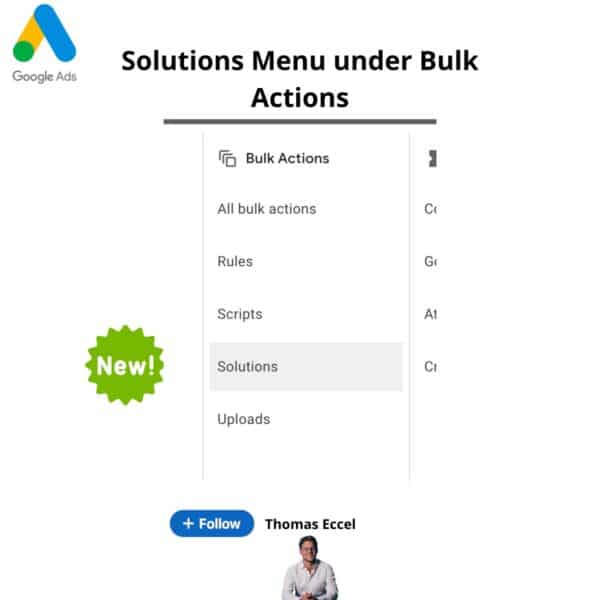
Eccel noted that upon opening the Solutions tab, which he described as “still a bit buggy”, users have access to:
- “Account summary: This generates a report of the performance of the account.”
- “Ad performance: This feature generates a spreadsheet with charts showing performance.”
- “Account Anomaly detector: This tool sends out emails when a unusual account activity is detected.”
- “Link checker: This ensures that no urls have a not found page.”
- “Flexible budgets: This dynamically adjusts campaign budget daily with a budget scheme.|
- “Common negative list: To simplify the management of negative criteria.”
Getting started. To create Solutions in your Google Ads account, follow these steps:
- In your Google Ads account, click the tools icon.
- Under “Bulk Actions”, click the “Solutions” tab.
- Under the “Solutions” tab, click the plus button, which opens the “All solutions” side window.
- Click “Create new” under the desired solution type.
- Provide the name of your solutions in the “Solution name” field.
- Edit the customization based on your needs.
- Click “Save”.
Preview. To preview a running solution, follow these simple steps
- In your Google Ads account, click the tools icon.
- Under “Bulk Actions”, click the “Solutions” tab.
- Navigate to the solution item and click on the solution you want to run.
- Scroll down to the “Preview” section and click “Run preview”.
- To check if the solutions ran successfully, review the “Solutions history” section.
- Click “Changes” to track the successful changes.
To edit an existing solution, navigate to “Actions” for the existing solution, click on “Options” and a dropdown will appear. Click “Edit”. To discard an existing solution, navigate to “Actions” for the existing solution, click on “Options” and a dropdown will appear. Click “Remove”.
Get the daily newsletter search marketers rely on.
Deep dive. Read Google’s Solutions guidelines for more information.
Courtesy of Search Engine Land: News & Info About SEO, PPC, SEM, Search Engines & Search Marketing
Thursday, February 1st, 2024
Google officially removed the cache link from the Google Search results snippets last week and Google confirmed that it will remove the cache functionality completely in the near future. Danny Sullivan, Google’s Search Liaison told us that Google has “decided to retire it” and removed it from the Google Search result pages and will soon remove the cache completely.
Cache removed. Around January 25th I reported on the Search Engine Roundtable that the cache link was removed from the search results snippet. As you can see from this screenshot, the cache link is completely missing:
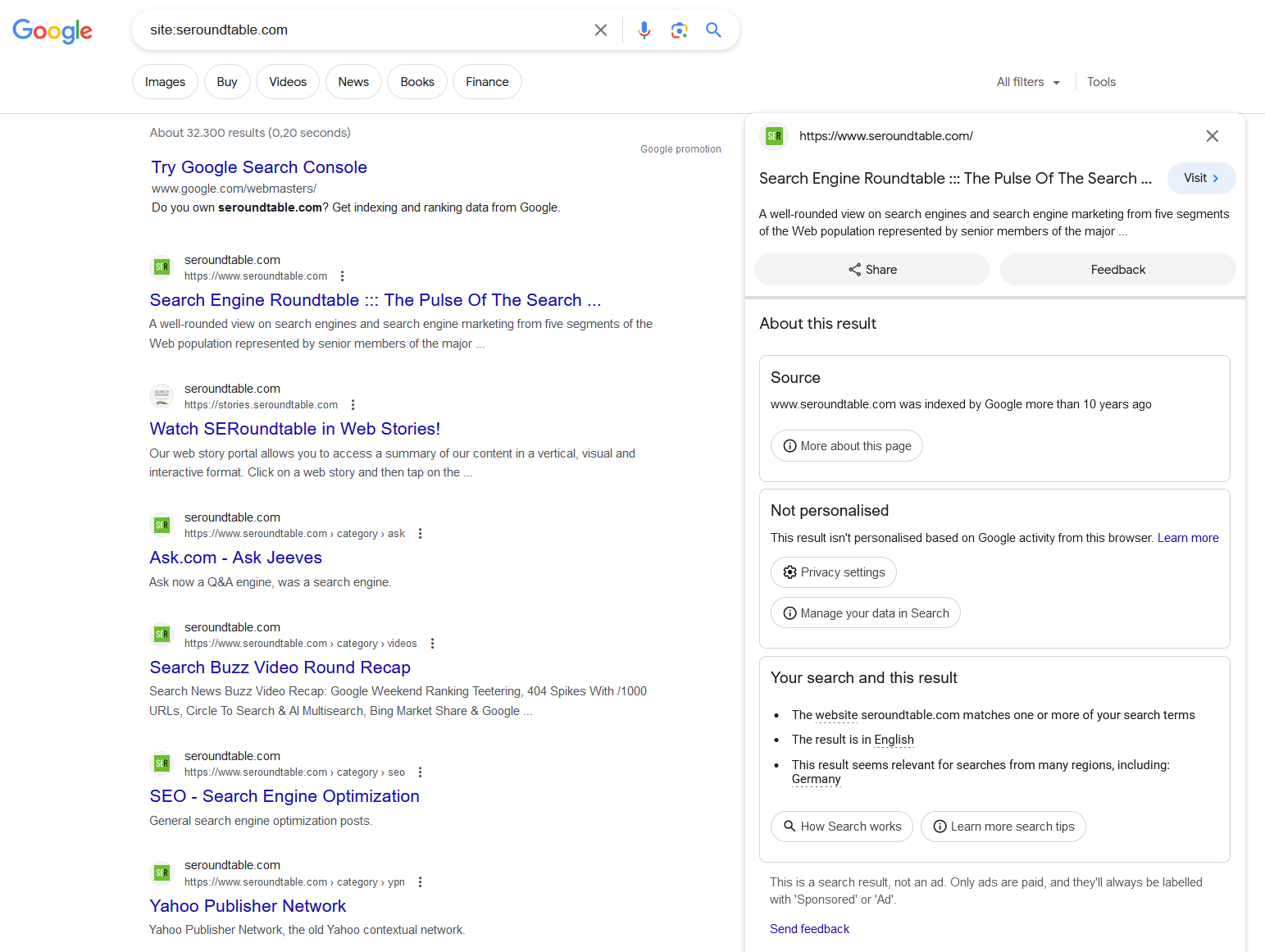
Cache operator works for now… But the cache operator currently works, at least for the time being. Google [cache:domain.com] – so for example, this site – you can search for [https://www.google.com/search?q=cache:seroundtable.com] and the cache will work.
Cache operator will stop working. But Google said this too will be retired and stop working. “You’re going to see cache: go away in the near future, too,” Sullivan wrote.
Noarchive. Google said you can keep the noarchive tags there, Google will still respect it. Sullivan wrote, “But wait, I hear you ask, what about noarchive? We’ll still respect that; no need to mess with it. Plus, others beyond us use it.”
Wayback machine instead. Sullivan added that he would like to see Google add links to the Wayback Machine so users can get access to the archived versions of those pages. “Personally, I hope that maybe we’ll add links to @internetarchive from where we had the cache link before, within About This Result. It’s such an amazing resource. For the information literacy goal of About The Result, I think it would also be a nice fit — allowing people to easily see how a page changed over time. No promises. We have to talk to them, see how it all might go — involves people well beyond me. But I think it would be nice all around,” Sullvian wrote.
Why we care. While the cache is not a good use for debugging SEO issues, it has become a defacto tool for many SEOs and searchers over the years. But Google decided it is time for it to go and we will have to find alternatives.
The Wayback Machine is an excellent way to see older versions of specific URLs, and it is free.
Courtesy of Search Engine Land: News & Info About SEO, PPC, SEM, Search Engines & Search Marketing
Thursday, February 1st, 2024
LinkedIn is simplifying action tracking with a new tool called Website Actions.
This new data layer enables B2B marketers using LinkedIn’s Insight Tag to set new conversions, build retargeting audiences and measure campaign impact without the need for additional tracking codes on your website.
Why we care. It’s now easier to track and attribute website activity because there is no need for complex coding knowledge. This simplification allows for the straightforward creation of ad audiences, improving campaign optimization and boosting conversions.
What is LinkedIn’s Insight Tag? The LinkedIn Insight Tag is a snippet of JavaScript code that loads a small library of functions you can use to track Linkedin ad-driven visitor activity on your website. It relies on LinkedIn cookies, which enable the platform to match your website visitors to their respective LinkedIn member accounts.
Getting started. To start using Website Actions, follow these simple steps:
- Log onto Campaign Manager.
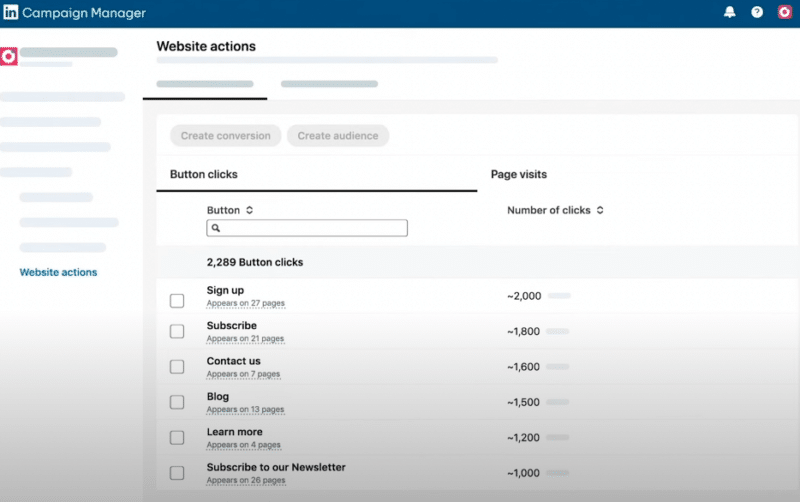
- Under the “Analyze” section, click on the new “Website Actions” section.
- On this tab, you’ll be presented with a list of all the main button clicks – such as “Sign up” or “Subscribe” – and webpages on your site (see image below).
- Check one or multiple actions to turn them into an audience or conversion in just one click.
What LinkedIn is saying. Johanna Kimura, Product Marketing Leader at LinkedIn, said in a statement:
- “Historically, B2B marketers [have] depended on engineering teams to implement intricate tracking codes. They subsequently needed to individually establish conversion rules and form distinct retargeting audiences.”
- “This not only strains the engineering team and could potentially hinder website performance, but it also erects a barrier for marketing teams seeking to retarget and gauge the effectiveness of advertising strategies.
- “Website Actions allows marketers to take control of their retargeting and measurement efforts, offering a seamless and user-friendly way for marketers to uncover what’s working and drive better results.”
Get the daily newsletter search marketers rely on.
Deep dive. Read LinkedIn’s announcement in full for more information.
Courtesy of Search Engine Land: News & Info About SEO, PPC, SEM, Search Engines & Search Marketing
Thursday, February 1st, 2024
Meta advertisers can now measure conversions that occur within one day of a video ad play.
The introduction of the Engaged-view attribution setting addresses a video trend where viewers prefer to complete their session before taking action on a video ad, minimizing disruptions to their viewing experience. Meta has said it introduced this setting to enable advertisers to capitalize on this behavior.
Why we care. By incorporating engaged-view alongside other attribution settings, you gain a more comprehensive view of your ad performance. This analysis enables you to optimize your video ad campaigns more effectively for increased conversions and a higher return on investment.
How it works. Engaged-view is included in ads measurement reporting when viewers play video ads for at least 10 seconds (or watch 97% of the video length if it’s under 10 seconds) and subsequently convert within a one-day window.
Availability. Engaged-view is available for all placements except Facebook in-stream video ads that cannot be skipped.
What Meta is saying. A Meta spokesperson said in a statement:
- “The Engaged-view measurement can help you decide how to optimize for actions beyond a click such as deciding how you can optimize for people who engage with your video ads and do not click.”
- “It is a way to help Meta better identify future people who may convert and ultimately drive your video campaign performance.”
- “We know that not everyone who converts necessarily clicks an ad right away, and using engaged-view alongside click through and view through can give you a more holistic understanding of a customer’s path to conversion.”
Get the daily newsletter search marketers rely on.
Deep dive. Read Meta’s announcement in full for more information.
Courtesy of Search Engine Land: News & Info About SEO, PPC, SEM, Search Engines & Search Marketing
Wednesday, January 31st, 2024
With Google Analytics 4 (GA4) reports, you can better understand the performance of your organic search efforts. Knowing how much traffic is coming from Google or other search engines lets you enhance your SEO strategy for better results.
This article will cover how to view and analyze your organic traffic data in GA4, the key dimensions to look at, such as source and medium, and the main metrics to assess, like total users and sessions.
What is organic traffic?
Organic traffic is the traffic acquisition channel by which users reach a website through non-advertising links from organic search results.
Organic traffic can come from different search engine sources like Google, Bing, Ecosia, etc.
The other main traffic channels are:
- Paid traffic: When users reach a website via ads on search engines, such as Google.
- Direct: When users get to a website directly by entering the URL.
- Referral: When users reach a website through non-paid links on other websites.
- Social: When users reach a website through clicks on social networks via paid or organic, such as Facebook or X.
How is GA4 website organic traffic measured?
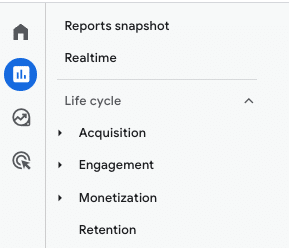
GA4 provides pre-made reports for analyzing site data. One key report is the Life cycle collection, which streamlines the analysis of the entire customer funnel from acquisition to retention.
The Life cycle collection is divided into four main groups of reports:
- Acquisition report: This lets you analyze how the traffic on a site was acquired, including organic traffic.
- Engagement report: This provides user engagement data on the website, enabling the measurement of key metrics like conversions, events, or landing pages.
- Monetization report: This helps analyze the revenue data, from how the promotions are performing to the best-selling products on a site.
- Retention report: This enables you to analyze how a website or an app retains users.
Measuring organic traffic with the GA4 Acquisition report
We’ll use the information in the Acquisition report to measure the organic traffic that comes to a website. However, it has different sections that might be a bit confusing.
So, to make sense of the results in the report, let’s look at how GA4 organizes the information by default.
GA4’s Acquisition report is divided into two main groups:
- User acquisition report: This offers data on how users were acquired for the first time on the website.
- Traffic acquisition report: This works on a session level and helps identify the campaign from which each session comes from.
Using GA4’s Traffic acquisition report, you can analyze organic traffic based on different dimensions:
By default channel groups
Default channel groups are the groups of channels through which users reach the website.
In this set, you can observe that GA4 provides, by default, several non-editable groupings that allow you to track the organic traffic to your website:
- Organic search is the channel by which users reach your site through non-advertising links in organic search results.
- Organic shopping is the channel through which users reach your site through non-advertising links on shopping sites such as Amazon or Etsy.
- Organic social is the channel through which users get to your website through non-advertising links on social sites such as Facebook or X.
- Organic video is the channel through which users reach a site via ad-free links on video sites such as YouTube or TikTok.
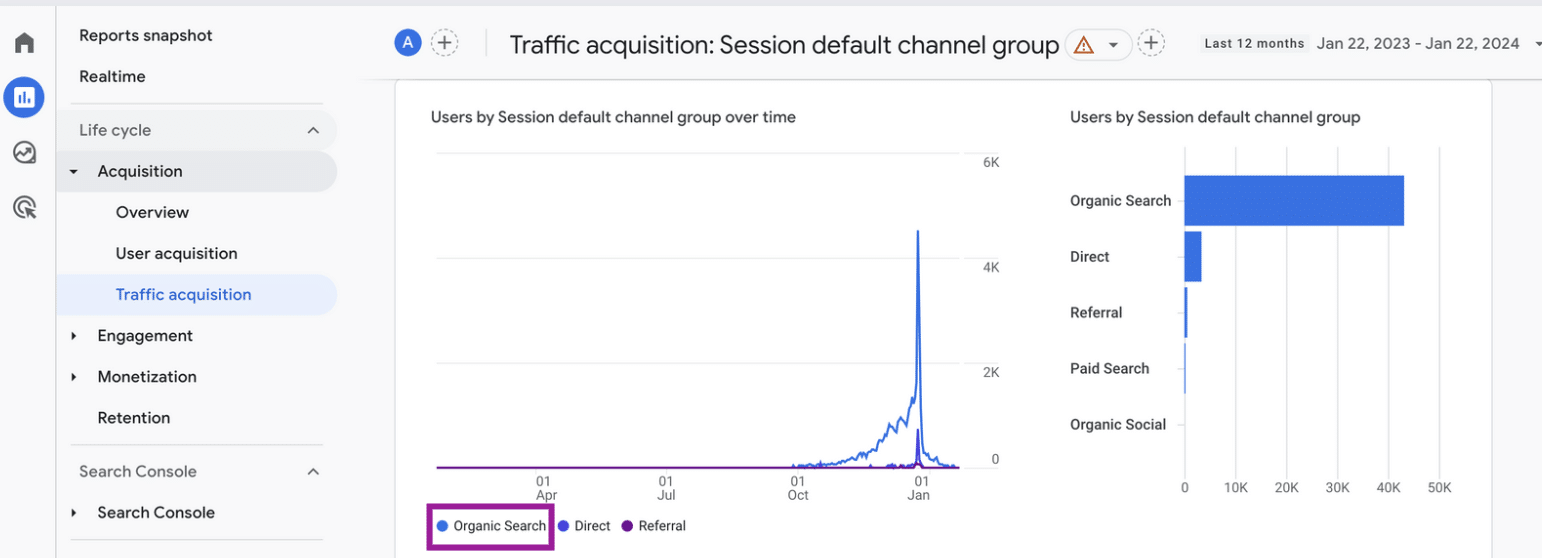
All these organic traffic channel groups with data will be displayed by default in GA4: Reports > Traffic acquisition > Session default channel group.
If you want to display only this data in the traffic results of the organic channel groups, one option you have is to filter through the search engine by searching for “organic“:
On top of the default channel groups for analyzing organic traffic, GA4 also has other default channel groups, including:
- Affiliates
- Audio
- Cross-network
- Direct
- Display
- Email
- Mobile push notifications
- Paid other
- Paid search
- Paid shopping
- Paid social
- Paid video
- Referral
- SMS
By medium
From the same report, you can analyze organic traffic through the medium dimension, which involves the method for attracting users to a website or app.
The mediums included on GA4 are:
- organic: Users who clicked a link from a search engine through non-advertising links.
- affiliate: Users who clicked a link through an affiliate program.
- cpc: Users who clicked a paid advertisement.
- email: Users who clicked a link in an email marketing campaign
- referral: Users who clicked a link from another website.
- (none): Direct traffic from the site.
To analyze the organic traffic through the medium dimension, go to Reports > Traffic acquisition > Session medium.
By source / medium
If you want to understand where your website visitors are coming from, don’t just use the medium dimension. Consider the specific website or platform that directed them to your site or the source dimension.
This helps you know the actual source of your web traffic, like whether it’s from Google Search, which is labeled as “google” in the session source dimension.
This information helps you draw meaningful conclusions about the effectiveness of your digital strategies in driving traffic.
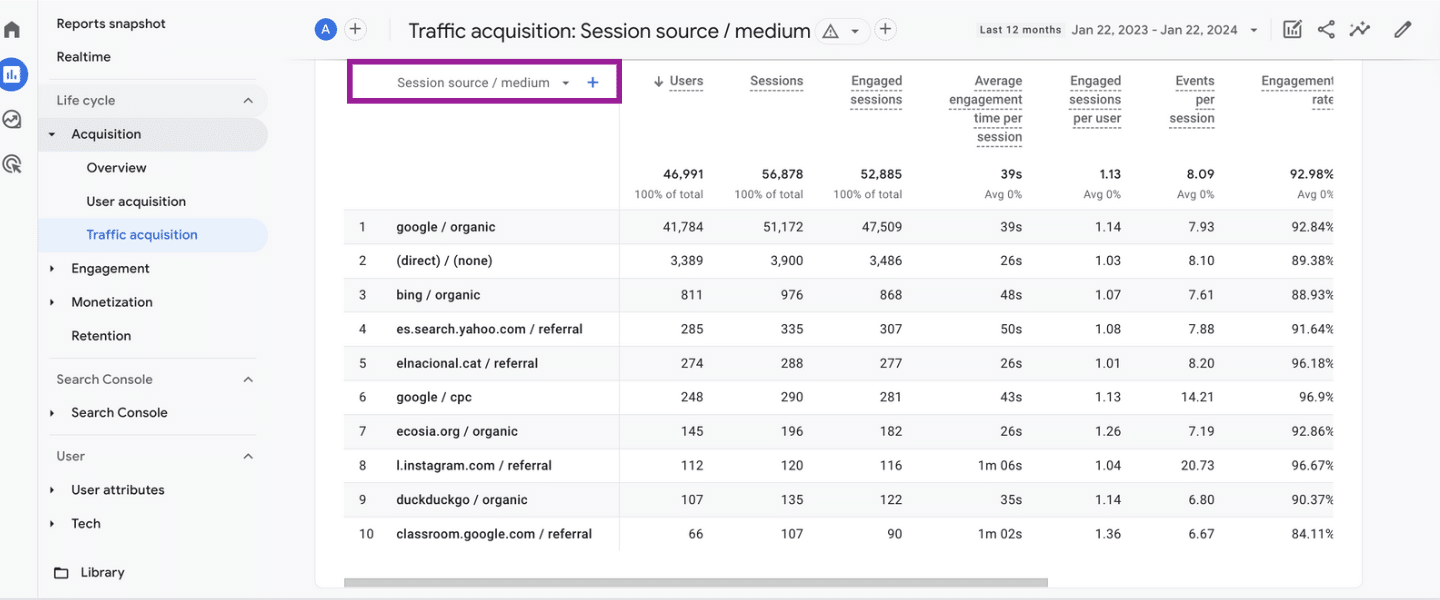
To display this data, you need to go to Reports > Traffic acquisition > Session source/medium.
For example, the following results allow you to know the traffic coming from organic channels and filter specifically by source (e.g., google, bing, ecosia.org or duckduckgo).
Get the daily newsletter search marketers rely on.
Key metrics for analyzing organic traffic in GA4
By default, GA4 Traffic acquisition report shows you different metrics to help you understand and analyze the data.
Among the most common metrics include:
- Users: The total number of active users.
- Sessions: The number of sessions that are started on the site. A session is triggered when a user opens the app in the background or views a page or screen, and there is no active session at the time.
- Engaged sessions: Total number of engaged sessions. For the sessions to be included in this column, they need to last at least 10 seconds or have 1 or more conversion events or 2 or more page or screen views.
- Average engagement time per sessions: Duration of user interaction per session.
- Engaged sessions per user: Total number of engaged sessions per user.
- Events per session: Average number of events per session.
- Engagement rate: The percentage of engaged sessions.

- Events count: The number of times users have triggered an event. You can filter by each type of event.
- Conversions: The number of times users have triggered a conversion. Each one can be analyzed individually.
- Revenue: The total revenue from purchases, subscriptions and advertising. This has to be configured manually previously.
To track conversions or revenue outcomes, you must have these dimensions configured and set to collect the data.
Dig deeper: GA4 for B2B: How to track events and conversions
How to add more metrics in the reports for organic traffic analysis
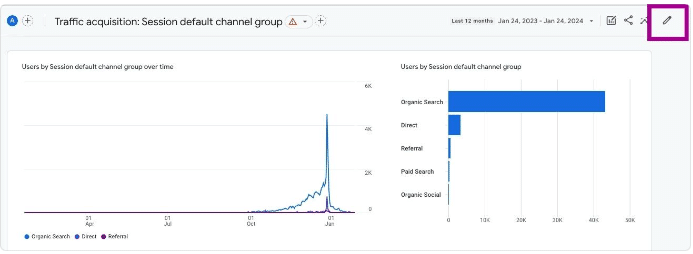
If the default metrics aren’t enough for analyzing your website’s organic traffic, you can customize the report by adding more. Look for the customization option on the upper right side of the page.
Report customization lets you include more metrics or edit the default ones:
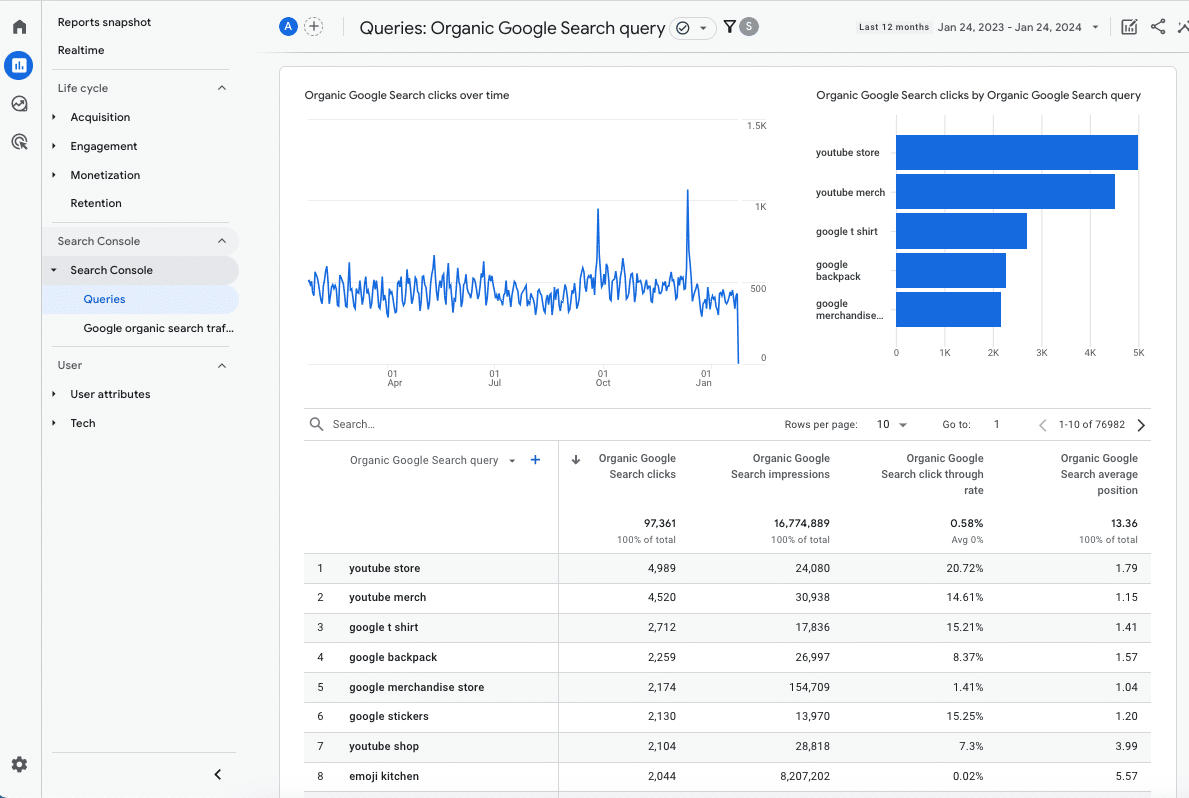
Analyzing Google Search Console traffic in GA4
If you want to analyze Google’s organic traffic coming from Google Search Console, you must do it in another report, specifically in the Search Console report with GA4.
The report isn’t automatically shown in the GA4 interface. But it gives information about the search queries people use on Google to get to your website.
It also includes another report about how specific pages on your site perform in terms of traffic from Google searches.
Dig deeper: How to link GA4 with Google Search Console
Measuring organic traffic in GA4
Google Analytics 4 provides detailed insights into your website’s organic traffic acquisition through its default channel groups, medium, and source/medium dimensions.
Key metrics like users, sessions, engagement rates, and conversions let you analyze the performance of your organic search strategy and identify opportunities to enhance it.
Integrating GA4 with Google Search Console also gives visibility into search terms driving traffic to specific pages. Regularly monitor this data so you can optimize your content and site architecture for improved organic search results over time.
Courtesy of Search Engine Land: News & Info About SEO, PPC, SEM, Search Engines & Search Marketing
Wednesday, January 31st, 2024
Humans are more likely to prefer content generated by AI than written by a human, according to a surprising new survey.
Why we care. While AI can’t entirely replace humans in content creation, clearly generative AI can create content that resonates with consumers.
Generative AI 6, humans 0. In six AI- vs. human-generated content battles, the generative AI version “won” each.
Here’s an example of one such battle, where the task was to write an introduction for a blog post about the best cat food for indoor cats. AI won 54% to 46%:
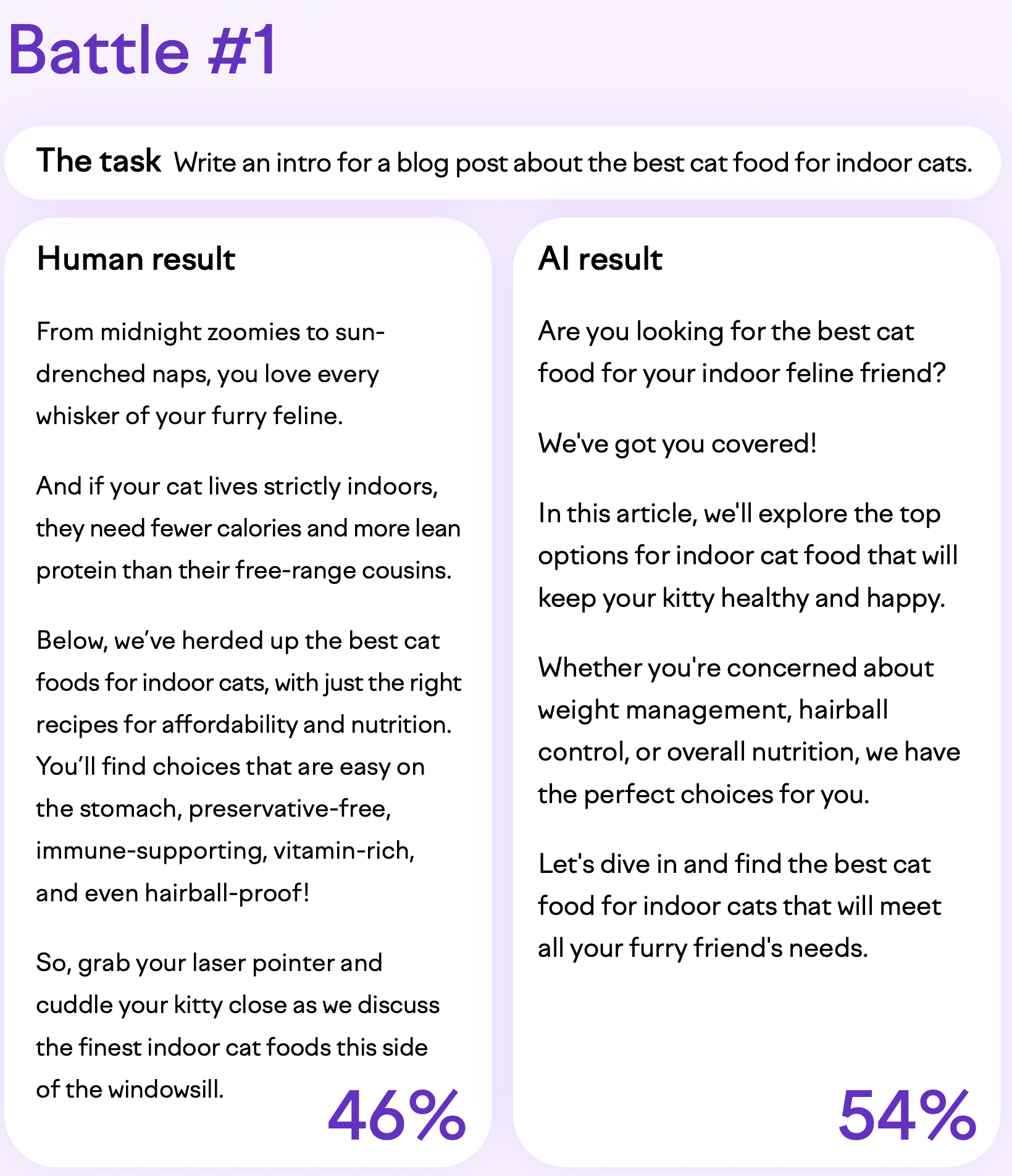
In the other five battles, AI defeated humans at writing social media ads (70% to 30% and 54% to 47%), writing a blog post paragraph (60% to 40%), writing a social media post (65% to 35%), and writing a product description (65% to 35%).
But. While the survey is interesting and surprising, it’s important to note that while AI won on preference in this survey, that may not translate to actual performance (e.g., traffic, leads, revenue, rankings, engagement).
Also, we’ve seen quite a few examples of AI gone wrong (hello, Sports Illustrated), including:
Methodology. The survey of 700 U.S. consumers (50.2% male, 49.5% female) was included as part of a larger Semrush report called Think Big with AI: Transforming Small Business Content Marketing” (PDF download required). Age breakdown:
- 38% of respondents were 25-44.
- 12% were 18-24.
- 18% were 45-54.
- 32% were 55 or older.
Semrush “worked with several writers” to create the human copy. To produce the AI content, Semrush used detailed prompts (e.g., guidelines on tone of voice, length, readability, objectives) and sometimes had to write two or three additional prompts to refine the end result.
Lessons learned. As Semrush wrote in the report:
- “These results show that AI-written content can be effective and resonate with your customers. If you prompt your AI tools well enough, you can create engaging and high-quality marketing copy.”
- “However, our experiment does not suggest that AI is enough for content writing.”
Why people likely preferred the AI-generated content:
- It quickly got to the point.
- It clearly highlighted value propositions or reader concerns.
- It was easier to read and understand.
Courtesy of Search Engine Land: News & Info About SEO, PPC, SEM, Search Engines & Search Marketing
Wednesday, January 31st, 2024
Google officially clarified that it has no plans to replace its advertising sales staff with AI.
Philipp Schindler, Google’s senior vice president and chief business officer, emphasized that recent organizational restructures were geared towards enhancing the efficiency of its services.
Additionally, he highlighted that the ongoing development of new AI solutions is to enable its customers to grow and deliver a return on their investments at scale.
What Google is saying. Speaking at the Alphabet 2023 Q4 earnings call, Schindler said:
- “I want to be clear, when we restructure, there’s always an opportunity to be more efficient and smarter in how we service and grow our customers.”
- “We’re not restructuring because AI is taking away roles that’s important here. But we see significant opportunities here with our AI-powered solution to actually deliver incredible ROI at scale, and that’s why we’re doing some of those adjustments.”
- “So I look at sales force intensity as a stronger focus going forward.”
Why we care. Advertisers have expressed concerns about communication issues with Google staff, fearing it could worsen if AI replaces human channels. Google, however, denied any intention of replacing human communication channels with advertisers using AI.
Mass lay offs. Google made headlines by laying off 12,000 employees last year, a surprising move considering the company’s record-breaking profits. Adding to this, Google recently announced plans to cut hundreds more roles, specifically within its advertising sales division, earlier this month. The mass layoff have proved costly for Google, with the company confirming it had spent $2.1 billion on severance and other expenses just last year alone.
AI takeover rumours. The mass lay offs sparked speculation about the potential replacement of staff with AI – particularly within Google’s Global Customer Solutions team (GCS), responsible for serving every customer from large international companies to small businesses. Contrary to these speculations, Schindler confirmed that GCS is, in fact, Google’s fastest-growing channel, and so Google is actually making adjustments to ensure more resources can be allocated to “dynamically deliver the right treatment for every customer.”
New AI offerings. Google previously discussed with Search Engine Land how it is testing new AI capabilities to provide advertisers with more support. Specifically, it has tested new features in the Ads Help Center to assist customers in self-resolving issues more efficiently. Importantly, these AI-driven features are not meant to replace staff; instead, they are designed to provide additional support.
Get the daily newsletter search marketers rely on.
Deep dive. Read our full report on Google’s Q4 2023 earnings for more information.
Courtesy of Search Engine Land: News & Info About SEO, PPC, SEM, Search Engines & Search Marketing
Wednesday, January 31st, 2024
We have entered the new “Gemini era” of Google – and the Search Generative Experience and AI will continue to be a huge part of Search, based on the latest earnings call of Alphabet, Google’s parent company.
Why we care. Despite what you may have heard on social media, SGE isn’t going away. While it’s still unclear whether Google will fully launch SGE as the default experience in 2024, Google continues to test and tweak it. CEO Sundar Pichai said he feels “very good” about the progress of SGE.
What we learned. Let’s look at the most interesting quotes from the Q4 Alphabet earnings call around SGE, Gemini, Ads and AI Search.
SGE. We are in the “earliest days” of SGE, Pichai said, which should be the clearest indication SGE isn’t going away anytime soon. Also, SGE was one the first things Pichai commented on.
Pichai also said that SGE is showing more links with SGE, which has been a huge and ongoing concern for publishers worried about losing valuable organic traffic. But whether those links are driving any traffic? We have no idea because Google has shared no data.
Here’s what Pichai said:
- “We are already experimenting with Gemini in Search, where it’s making our Search Generative Experience, or SGE, faster for users. We have seen a 40% reduction in latency in English in the U.S. I’m happy with what we are seeing in the earliest days of SGE.”
- “It’s available through Search Labs in seven languages. By applying generative AI to Search, we are able to serve a wider range of information needs and answer new types of questions, including those that benefit from multiple perspectives. People are finding it particularly useful for more complex questions, like comparisons or longer queries. It’s also helpful in areas where people are looking for deeper understanding, such as education or even gift ideas.”
- “We are improving satisfaction, including answers for more conversational and intricate queries. As I mentioned earlier, we are surfacing more links with SGE and linking to a wider range of sources on the results page, and we’ll continue to prioritize approaches that add value for our users and send valuable traffic to publishers.”
Later in the call, Pichai said he felt “very good about the progress” of SGE, as well as AI Search in general:
- “When we test Search Generative Experience, particularly against everything that’s out there. And we can see the progress we are making and how much users are liking the experience better. And so I think I feel very good about the progress. And our roadmap for ’24 is strong both on the Search and the underlying AI progress, including the model. So I’m pretty excited about what’s ahead of us in ’24.”
Gemini. Gemini 1.0, launched in December, ushered in the new “Gemini era” of Google, Pichai said. Gemini Ultra is “coming soon.” Google previously said the Ultra model will be used for highly complex tasks. It will be a paid model.
Pichai’s quotes:
- “We closed the year by launching the Gemini era, a new industry-leading series of models that will fuel the next generation of advances. Gemini is the first realization of the vision we had when we formed Google DeepMind, bringing together our two world-class research teams. It’s engineered to understand and combine text, images, audio, video, and code in a natively multi-modal way, and it can run on everything from mobile devices to data centers.”
- “Gemini gives us a great foundation. It’s already demonstrating state-of-the-art capabilities, and it’s only going to get better. Gemini Ultra is coming soon. The team is already working on the next versions and bringing it to our products.”
SGE and Ads. Google is continuing to experiment with ads native to SGE, but also indicated ads above or below SGE were also successful. Here’s what Philipp Schindler, Google’s senior vice president, chief business officer, said:
- “As we shared last quarter, ads will continue to play an important role in the new search experience and will continue to experiment with new formats native to SGE. SGE is creating new opportunities for us to improve commercial journeys for people by showing relevant ads alongside search results. We’ve also found that people are finding ads either above or below the AI-powered overview helpful as they provide useful options for people to take action and connect with businesses.”
- “Launches included a one-stop shop deals destination; new filters, like get it fast; and AI-generated gifting recommendations in SGE.”
Dig deeper. Google search revenue rises to $48 billion, total ad revenue up 11%
AI Search. Google’s future vision of Search seems to be going beyond just providing answers – where Google acts more as an “agent.” This seems to be more of a 10-year type of goal, and Search will be radically different than we’ve known it for more than two decades.
Google has previously said it wants to make Google more “ambiently” available (essentially meaning, Search is everything, everywhere, all at once). Here’s Pichai’s quote:
- “Clearly, as I said, as we are incorporating SGE in the product, the early feedback is positive.”
- “And we’ve been iterating on it, and it clearly works for certain type of queries very well. We are expanding the set of queries where it works very well. It definitely is answering a certain category of queries for the first time in a better way. So that gives us direction to proceed as well.”
- Overall, one of the things I think people underestimate about Search is the breadth of Search, the amount of queries we see constantly on a new day, which we haven’t seen before. And so the trick here is to deliver that high-quality experience across the breadth of what we see in Search. And over time, we think Assistant will be very complementary. And we will again use generative AI there, particularly with our most advanced models and Bard, and allows us to act more like an agent over time, if I were to think about the future and maybe go beyond answers and follow through for users even more.
- So that is the — directionally, what the opportunity set is. Obviously, a lot of execution ahead. But it’s an area where I think we have a deep sense of what to do. And all the work we have taken so far, the feedback has been super positive.
Pichai also discussed Circle to Search, Lens and Bard:
- Beyond SGE, we are continuing to use AI to make searching more accessible and intuitive. Circle to Search lets you search what you see on Android phones with a simple gesture without switching apps. It’s available starting this week on Pixel 8 and Pixel 8 Pro and the new Samsung Galaxy S24 series.
- And Lens now offers generative AI overviews. You can add text to a visual search to ask questions about anything you see and get AI-powered insights in the moment. In addition to Search, we are also seeing a lot of interest in our AI-powered solutions for advertisers that includes our new conversational experience that uses Gemini to accelerate the creation of search campaigns.
- Then there is Bard, our conversational AI tool that complements Search. It’s now powered by Gemini Pro, and it’s much more capable at things like understanding, summarizing, reasoning, coding, and planning. It’s now in over 40 languages and over 230 countries around the world. Looking ahead, we’ll be rolling out an even more advanced version for subscribers powered by Gemini Ultra.
Dig deeper.
Courtesy of Search Engine Land: News & Info About SEO, PPC, SEM, Search Engines & Search Marketing
Tuesday, January 30th, 2024
Yelp is rolling out scheduled support consultations for advertisers to ensure their questions are answered in a “timely manner”.
While options like online FAQs, email and chat are effective for many queries, some advertisers prefer the value of speaking with a live representative for more personalized assistance, the platform told Search Engine Land.
The news coincides with reports of dissatisfaction with Google Ads’ support, which has been described as hitting “an all-time low” by frustrated advertisers.
Why we care. If the insufficient support from Google Ads is a concern, considering Yelp as an alternative platform is worthwhile due to the additional help and assistance it offers advertisers.
Scheduled consultations. Yelp now lets advertisers schedule consultations with their customer service team without waiting on hold. This makes it easier for advertisers to connect with customer support and set up consultations at a time that suits them.
What Yelp is saying. Nicole Lund, Director of Local Business Product at Yelp, told Search Engine Land:
- “We want advertisers to be able to get in touch with us as quickly as possible to help answer any questions, without having to wait on hold.”
- “Advertisers are managing a lot and don’t always have time to wait on hold to speak with someone, which means business owners would sometimes delay calling us for the support they needed.”
- “Not only have we heard that scheduled consultations are helping them get their questions answered quickly, but it’s helping to drive more success with their ads as we’re able to help business owners better optimize and adjust their ads when it’s most convenient for them.”
- “We’ve also anecdotally heard that the convenience of scheduled consultations is making their advertising experience even more positive, in turn making it even more likely that they’ll proactively engage on Yelp longer term.”
Yelp’s AI plans. In addition to new support feature, Yelp is increasing its use of AI to offer advertisers additional insights into their campaigns, including AI-powered smart budgets. This new feature utilizes AI to provide advertisers with personalized ad budget recommendations, by taking various unique factors about their business into consideration, such as rating, category, listing age, region, and more.
Google’s approach. While Yelp is enhancing its live support offering, Google has faced criticism for providing inadequate assistance to advertisers. Google acknowledged these concerns to Search Engine Land and said it is investing in AI to improve its advertiser Help Center. However, the search engine notably hasn’t confirmed additional investments in live support, despite advertisers requesting it.
Get the daily newsletter search marketers rely on.
Deep dive. Read Yelp’s announcement in full for more information.
Courtesy of Search Engine Land: News & Info About SEO, PPC, SEM, Search Engines & Search Marketing