Archive for the ‘seo news’ Category
Thursday, July 21st, 2022
A study conducted by Marketing Brew and an API called Pushshift resulted in some pretty odd findings regarding which subreddits allowed ads and which ones didn’t.
The findings. The results are based on the API pulling data from the top 2,500 most popular subreddits. They show that despite spending the last decade trying to address brand-safety concerns, their actual approach is more cautious, which makes the platform seem unpredictable and inconsistent.
Where Reddit doesn’t allow advertising. These are popular subreddits where Reddit doesn’t allow ads.
- r/mileycyrus
- r/mensrights
- r/daftpunk
- r/floridaman
- r/mensrights
- r/mdma
- r/islam
- r/israel
- r/redhotchilipeppers
- r/depression
- r/archerfx (a community dedicated to a popular animated television show)
- r/ska
- r/stopsmoking
Where Reddit does allow ads. Some subreddits that were allowed to run ads included political and alcohol topics.
- r/alcohol
- r/crypto
- r/religion
- r/politics
- r/neutralpolitics
- r/ukpolitics
- r/canadianpolitics
Some ads. Weirdly enough, these subreddits were labeled as sometimes allowing ads.
- r/americanpolitics
- r/internationalpolitics
- r/liberal
- r/conservative
What Reddit says. Reddit spokesperson Amanda Geraldo said that every new subreddit is labeled no_ads until it goes through a “manual human review” to gauge if it’s considered safe. She also said subreddits labeled as some_ads require advertisers to “opt-in or opt-out of advertising” and are considered “expanded inventory.”
Why we care. Reddit is expected to surpass $522 million in ad spend by 2023. For perspective, Twitter is expected to bring in $5.58 billion this year. Even though they’re on the smaller end of the spectrum as far as ad platforms go, there’s still a lot of potential upside. If you’re an advertiser looking to run ads on Reddit, be aware of where your ads may or may not be allowed.
The post Does Reddit even have an ads policy? appeared first on Search Engine Land.
Courtesy of Search Engine Land: News & Info About SEO, PPC, SEM, Search Engines & Search Marketing
Thursday, July 21st, 2022
As Reels gain in popularity, Instagram is taking it upon itself to move any video you post under 15 minutes (if your account is public) into the Reels category.
When you go to post a video to your profile, Instagram will show this alert.
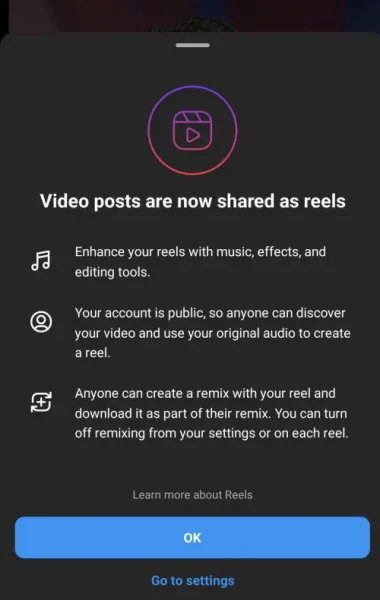
Discovery. When your Reels are posted to a public profile, they may be eligible and recommended for more people to see. This also allows other users to Remix, edit, and add their own spin on the videos using Instagram’s built-in tools like templates and a new Dual feature that records your front and back cameras simultaneously.
A few exceptions. There are a few exceptions to this, like videos posted before things changed today and videos that are longer than 15 minutes. The blog post also indicated that currently, only videos under 90 seconds in length will be eligible for the Discovery and recommendation system.
Remix tools. Instagram is also expanding tools for Remix to help enhance the way stories are told on Instagram when collaborating with creators and friends, including:
- Remix for photos: Photos are core to the Instagram experience. In the coming weeks, you will be able to remix public photos. This gives you a limitless inspiration to create your own unique reel.
- Expanded Remix layouts: Choose between a green screen, horizontal or vertical split-screen, or picture-in-picture reaction view to add your own video commentary to existing reels.
- Add your clip: Have a hot take? Rather than having your remix appear at the same time as the original reel, you can now add your clip after the original so it plays sequentially.
Read the announcement. You can read more about these new features on Instagram’s blog.
Why we care. The new features are being released in the same week as Facebook breaks up its main feed, and TikTok creators expressing their frustrations over low payouts. If you’re a creator who earns revenue from Instagram Reels, you can take advantage of their new tools and potential greater visibility.
The post New Instagram videos under 15 minutes will automatically become Reels appeared first on Search Engine Land.
Courtesy of Search Engine Land: News & Info About SEO, PPC, SEM, Search Engines & Search Marketing
Thursday, July 21st, 2022
Meta CEO Mark Zuckerberg has announced two significant changes to the Facebook app that will make it feel like a hybrid of TikTok and “Facebook classic.”
What’s new: Users will start seeing these changes starting today:
- The Home tab will include more personalized content recommendations, with a greater emphasis on Reels and Stories.
- A new Feeds tab that will allow users to see posts from friends, groups and Pages in reverse chronological order.
The rollout is expected to take about a week. These changes will come to the desktop later this year.
How Meta CEO Mark Zuckerberg described the change. “One of the most requested features for Facebook is to make sure people don’t miss friends’ posts. So today we’re launching a Feeds tab where you can see posts from your friends, groups, Pages and more separately in chronological order. The app will still open to a personalized feed on the Home tab, where our discovery engine will recommend the content we think you’ll care most about. But the Feeds tab will give you a way to customize and control your experience further.”
What it looks like. Here’s a screenshot Facebook shared:
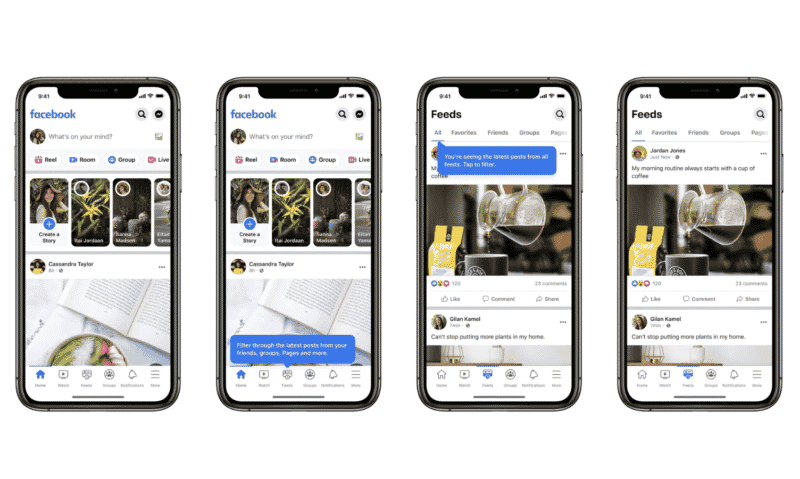
Official announcement. Facebook has published the official news announcement here.
Why we care. This has the potential to be a big “meh” or it could end up being a significant opportunity for marketers. This change shouldn’t impact advertising, as Facebook Ads will continue to appear in the Feed. But there is potential that video content could go viral if it gets enough engagement and sends the right signals (e.g., related engagement, related topics, locations) to Facebook’s machine-learning algorithms.
The future is now. In 2016, Zuckerberg said: “We see a world that is video-first with video at the heart of all of our apps and services.” It took six years, and the explosive growth of TikTok, but we continue to watch this major shift for Facebook from being a social network to becoming more of a TikTok-like content discovery engine.
The post Facebook Home tab to show more content recommendations appeared first on Search Engine Land.
Courtesy of Search Engine Land: News & Info About SEO, PPC, SEM, Search Engines & Search Marketing
Thursday, July 21st, 2022
Creators on TikTok, disappointed about how much they’re being paid from its Creator Fund, are leaving the platform claiming mental health blows and burnout.
A pattern of unhappy creators. There have been several creators that have criticized TikTok for low payouts since the platform pledged to pay out a total of $1 billion over a three-year period. In reality, creators like Hank Green claim they’re paid between $0.02 – $0.03 per one thousand video views. To put that into perspective, YouTube creators claim that they are paid roughly $1 per every one thousand views.
- In 2021 Kevin Yatsushiro created a video on TikTok that went viral with over 3 million views. He was paid only $12.50.
- Alicia Trautwein posted a video in 2021 that gained 1.8 million views. She was paid about $10.
- Nikki Apostolou is a TikToker with 145,000 followers. She posts about 3 videos a day, each getting about 2-3 million views. She makes about $20-$30 per month on average.
- Jimmy Donaldson is one of TikTok’s top creators with over 32 million fans on the platform. In January he earned just $25.10.
What’s the solution? Creators Trautwein and Yatsushiro have both suggested that TikTok needs to create a standardized payout program, much like how YouTube’s model works. This would make the TikTok Creator Fund a more competitive and secure program.
The YouTube model. Last year, YouTube’s CEO Susan Wojcicki wrote in a blog post that the company had shelled out $30 billion to creators between 2018 and 2021. “We can’t compare overall revenues for the two apps — TikTok is owned by a private company — but we do know that YouTube has roughly twice as many users as TikTok, not 30 times as many.”
Taking on brand sponsorship deals. Another option for TikTok creators is to work directly with large brands for sponsorship deals. Creators like Vi Luong who has 1 million followers have earned up to $32,000 per month through sponsorships.
According to Business Insider, Deanna Giulietti is a lifestyle creator with around 1.7 million followers on TikTok. Giuletti now creates content on both TikTok and Instagram Reels, which she uses to make money. The creator told Insider that she signs an average of 10 to 15 sponsored deals a month, depending on the time of the year, and last year she made $535,000 from brand deals alone, including $126,000 in November thanks to the holiday push.
TikTok’s claims. TikTok claims that they pay their creators based on a variety of factors including video views, engagement, the locations seen, and total participants in the Creator Fund. “Authenticity of a view” is also a considered factor, though there is no data on how that is calculated.
Why we care. TikTok’s claims that they want to be a source of consistent and reliable income for creators is laughable at best. We’re not saying that all creators participating in the Creator Fund are being underpaid, but the data isn’t telling us much otherwise. However, this could be good news for brands looking to hop on the influencer bandwagon, as the pool of creators looking for deals may be higher.
The post TikTok’s history of low Creator Fund payouts has some leaving the platform for good appeared first on Search Engine Land.
Courtesy of Search Engine Land: News & Info About SEO, PPC, SEM, Search Engines & Search Marketing
Wednesday, July 20th, 2022
Getting backlinks is one of the most challenging and time-consuming tasks in SEO. So how do you get started on creating a successful outreach program that brings in quality links?
Join Purelinq’s Kevin Rowe, who will walk you through creating a scalable outreach program to create a natural link profile, meet minimum quality requirements and drive maximum impact.
Register today for “Everything You Should Know About Building Quality Links at Scale,” presented by Purelinq.
The post Webinar: Everything you should know about building quality links at scale appeared first on Search Engine Land.
Courtesy of Search Engine Land: News & Info About SEO, PPC, SEM, Search Engines & Search Marketing
Wednesday, July 20th, 2022
Google announced this morning that there is a new way to verify your site and property in Google Search Console. You can now use DNS CNAME verification in Google Search Console, the search company announced on Twitter.
How it works. In Google Search Console, when you add a new property, Google lets you verify your property using several methods. These methods include:
- HTML file upload
- HTML tag
- Domain name provider
- Google Analytics tracking code
- Google Tag Manager container snippet
- Google Sites
- Blogger
- Google Domains
Google now gives you a new DNS method, CNAME, which actually was an option in the old Webmaster Tools but not an option in the new Search Console interface.
What it looks like. Here is a screenshot showing the new CNAME method:
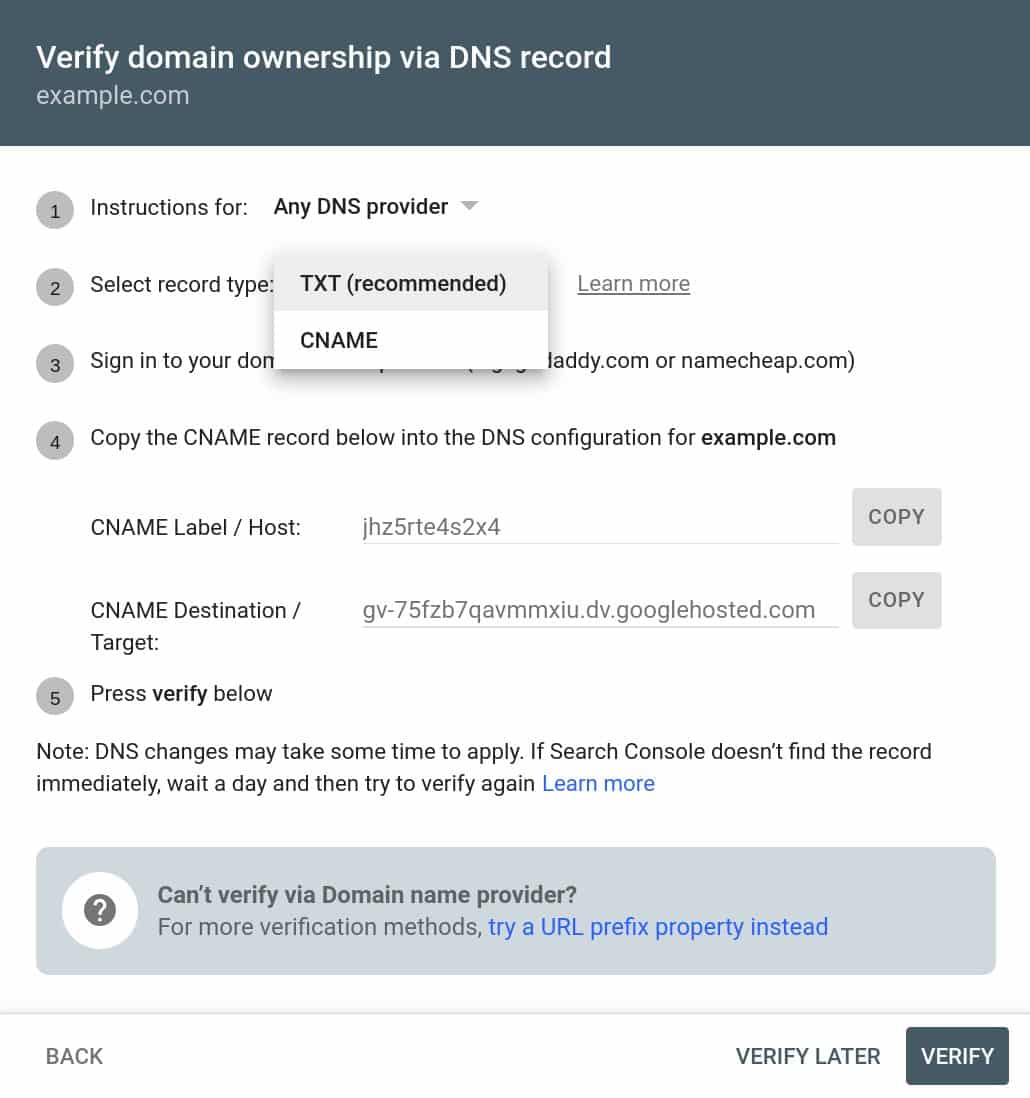
Confused? Thought so. Google has offered DNS verification for a long time. Daniel Waisberg from Google clarified that DNS verification only was supported using TXT in Google Search Console. He did add later that the old Google Webmaster Tools, once upon a time, did allow for CNAME DNS verification.
Oh wait! Actually, the CNAME option was available in the old Google Webmaster Tools, so maybe that's the reason you remember it!
— Daniel Waisberg (@danielwaisberg) July 20, 2022
Why we care. Well, we got one additional method to verify your property in Google Search Console. This gives your developers one less excuse on why not to verify your site in Google Search Console. So if you or your developers prefer CNAME DNS verification, you can now use it going forward.
The post Google Search Console adds CNAME DNS verification appeared first on Search Engine Land.
Courtesy of Search Engine Land: News & Info About SEO, PPC, SEM, Search Engines & Search Marketing
Wednesday, July 20th, 2022
Google has just announced two new tools in an attempt to make the process of creating ads and collaborating with team members much easier.
1. Asset storage and organization
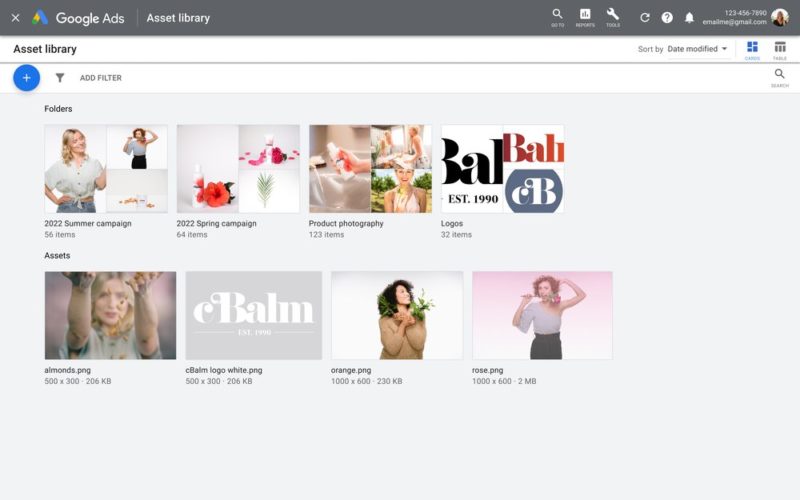
Multiple team members trying to access images and videos can be a tedious process. Google’s new Asset Library attempts to solve that issue by creating a visual-first database where colleagues can upload, download, and share assets from current and past campaigns.
The Asset Library is currently available for Performance Max, Discovery, App, Local, and Display campaigns as well as some extensions. When you’re ready to create or edit a new campaign, simply access the library and click on the appropriate assets.
2. Create video ads for YouTube
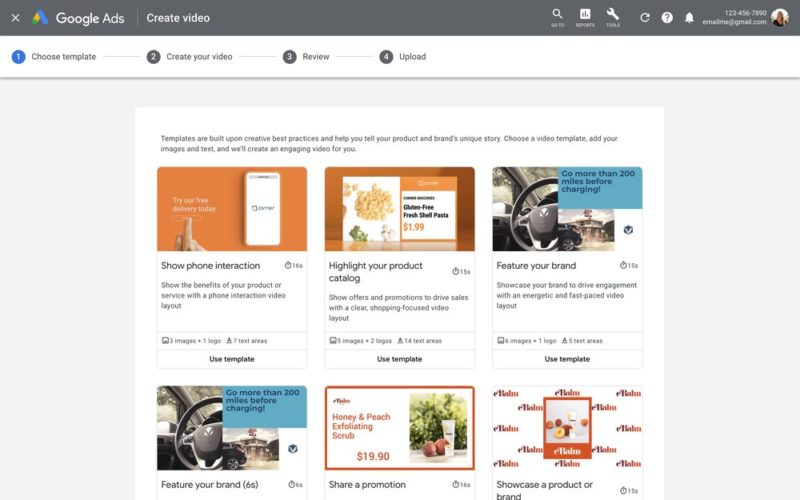
Last week we reported the launch of the Ads Creative Studio, which is intended on giving creators a new platform for customizing video and display ads. Today they announced a new feature allowing advertisers to quickly create video ads for YouTube.
The templates are made specifically for YouTube and designed “to help drive results,” although we suggest testing these templates against your current ads.
3. Voice-over audio
Google reports that videos with voice-over drive better performance. So they have also released a voice-over audio feature integrated into the video creation tool. The feature uses Google’s speech-to-text technology and is accessible through the asset library. There are seven voices available and the languages include English, Filipino, French, Hindi, Indonesian, Korean, Malaysian, Mandarin, Spanish and Swedish.
Read the blog. You can read the blog announcement about these new features here. Google Ads Liason Ginny Marvin also made the announcement on Twitter.
We’ve been working to make high-quality video ad creation easier for businesses of all sizes. Video creation is now fully launched in Google Ads Asset Library. You can also quickly add voice-over to your new & existing video ads. 1/2…
— AdsLiaison (@adsliaison) July 20, 2022
Why we care. These new features seem helpful, but like with any new release, advertisers should test before diving in. If you’re working with a team and creating multiple video ads for YouTube, try the new tools out and let us know on Twitter what you think.
The post Google launched three new ad creation tools appeared first on Search Engine Land.
Courtesy of Search Engine Land: News & Info About SEO, PPC, SEM, Search Engines & Search Marketing
Wednesday, July 20th, 2022
You’re invited!
Join Jonathan Barouch, CEO and founder at Local Measure and AWS for a special conversation and hands-on solution demonstration.
Watch Now
In this session:
Clunky and expensive legacy systems can frustrate your CX agents with redundant, repetitive tasks across disparate systems and siloed information.
Local Measure Engage for Amazon Connect is an omnichannel agent desktop for contact centers to manage all inbound customer conversations across voice, email, and digital messaging. It is a single pane of glass, radically improving agent productivity and powering meaningful customer experiences.
Engage for Amazon Connect integrates with all your business applications giving agents direct access to customer attributes, previous transactions, suggested help articles and related ticket history. This access allows agents to work smarter and resolve customer queries faster with workflow automations, task routing and knowledge base integrations.
You will learn:
- Learn about major challenges Customer Service Agents are facing today
- Hear how Local Measure can improve time to value
- See an on-demand demo of the solution in practice
Speaker Bio
Jonathan Barouch is the founder and CEO of the real-time customer conversation platform Local Measure. Local Measure has offices in Sydney, Amsterdam, Barcelona, Miami, and Singapore, and was the winner of the 2021 ICMI global Contact Center Awards in the “Best New Technology” category. Local Measure Engage for Amazon Connect is an omnichannel agent desktop for contact centers to manage all inbound customer conversations across voice, email and digital messaging in one place. It is a single pane of glass providing centralized customer data, real-time information and workflow automations to radically improve agent productivity and power meaningful customer experiences.
The post Learn how to personalize your customers’ digital experience appeared first on Search Engine Land.
Courtesy of Search Engine Land: News & Info About SEO, PPC, SEM, Search Engines & Search Marketing
Tuesday, July 19th, 2022
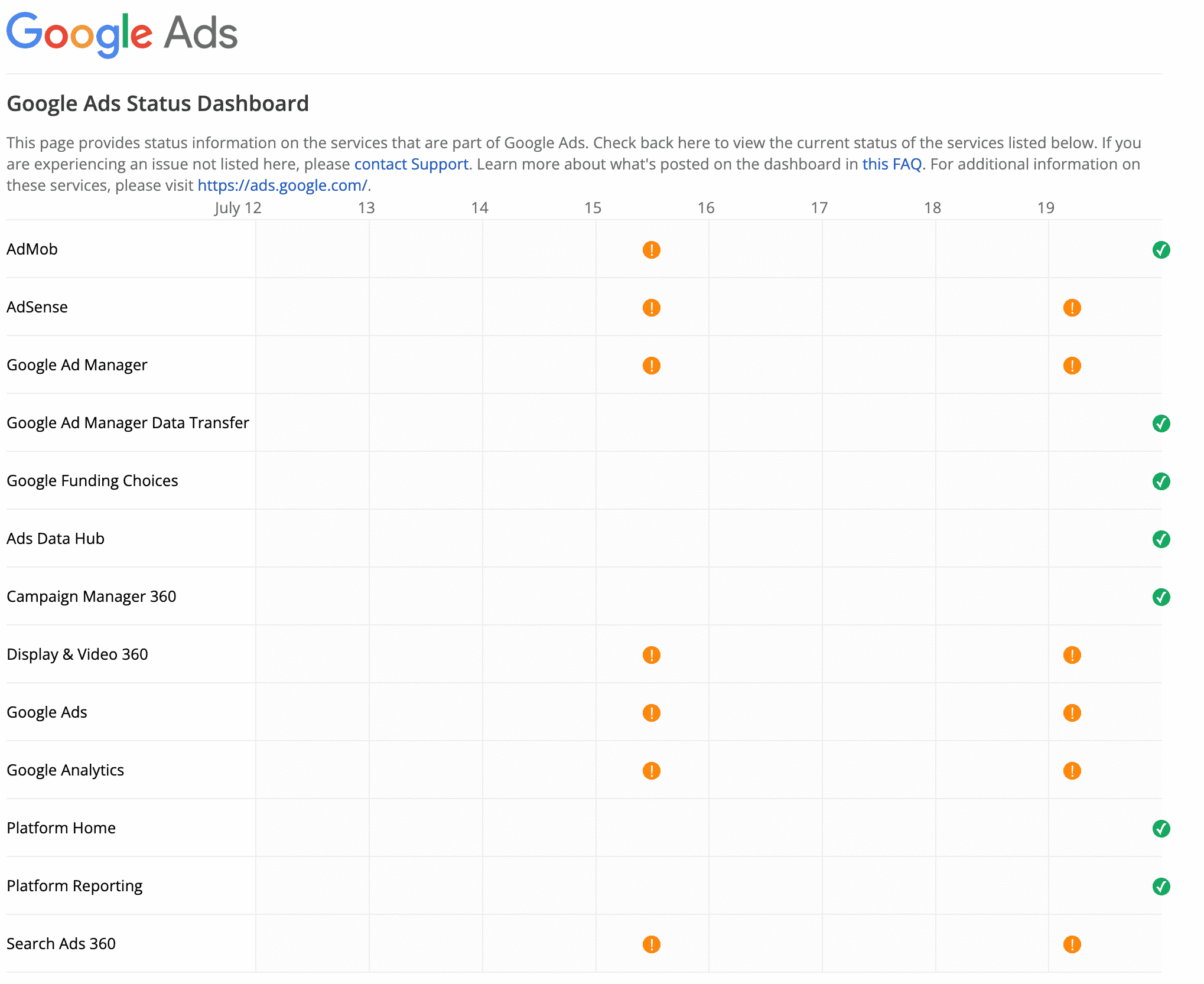
Google’s various ad platforms are suffering yet another reporting outage with serious delays to the Google Ads console, Google AdSense reporting, Google Analytics dashboards, and other platforms are impacted as well.
Confirmed. Google has confirmed the issues this morning, which we believe started at around 3 am ET on Tuesday, July 19th, based on the complaints we have seen from the search marketing industry. Google wrote “We’re investigating reports of an issue with Google Ads. We will provide more information shortly. The affected users are able to access Google Ads, but may not have access to the most recent data.”
Ginny Marvin, the Google Ads Liaison, also posted about this on Twitter:
There's an ongoing issue causing reporting delays in Google ads products and Google Analytics. We're working to address the issue. Please see the dashboard for updates: https://t.co/F19BfFj8h7
— AdsLiaison (@adsliaison) July 19, 2022
What is impacted? It seems that many Google Ads platforms are impacted, including:
- Google Ads
- Google AdSense
- Google Analytics
- Search Ads 360
- Display and Video 360
- Campaign Manager 360
- Google Ad Manager
Here is the current incident report at the time of reporting this:
Again. Yes, again. We reported about similar issues this past Friday. Google resolved those issues several hours later but new or existing issues have come up again this morning.
Why we care. As Nicole wrote on Friday, incorrect reporting gives way to incorrect adjustments, optimization, and changes. Check your ads dashboard. If your numbers look incorrect, you may want to hold off on making any big changes until the issue has been resolved.
The post Google Ads, AdSense, Analytics, and other platforms suffering reporting outages, again appeared first on Search Engine Land.
Courtesy of Search Engine Land: News & Info About SEO, PPC, SEM, Search Engines & Search Marketing
Tuesday, July 19th, 2022
Starting next week YouTube viewers will see a new shopping destination in the explore tab. The tab will feature shoppable relevant content from the creators in the US, Brazil, and India.
YouTube Studio’s Shopping. YouTube has also introduced new tools within YouTube Studio’s Shopping tab so creators can manage how their products are tagged and appear across their channels. Additionally, all eligible creators can now access live shopping features like the ability to tag products to a live stream directly from the Live Control Room.
Shopify partnership. YouTube also announced a partnership with e-commerce platform giant Shopify. The partnership would allow creators and merchants to feature products across their YouTube channels and content. Eligible creators can link their Shopify stores.
How it works. Creators who link their stores will be able to display their products across their channels. Shopify will perform real-time inventory syncing to ensure product inventory is always up to date. US creators can even enable onsite checkout so viewers can purchase without having to leave the channel.
“We believe creators are the next generation of merchants, and YouTube has been a longtime leader in powering this new cohort of entrepreneurs,” said Kaz Nejatian, VP of product at Shopify.
Who is eligible. To be eligible for YouTube’s shopping features, user must meet certain minimum requirements. These include: the channel must be approved for monetization; if the channel is a music channel, it has to be an officially certified artist channel; if it’s not a music channel, it has to have more than 10,000 subscribers; and the channel’s audience must not have a “significant number” of videos designated as made for kids. You can view the eligibility requirements here.
What YouTube is saying. YouTube is also exploring additional shopping options across other video formats. “We’re continuing to expand shopping across Live, Shorts and long-form video to help more creators connect with their viewers and fans in fun, creative ways and we can’t wait to see how our creators bring shopping to life on YouTube.” You can read the announcement from YouTube here.
Why we care. The launch of several social media shopping tools in the last few weeks means that creators and brands have more ways than ever to compete with Amazon. Just like with the new Instagram payments in chat feature, we’ll be interested to see the shift from consumers purchasing on Amazon, directly through the website, or within social media. If you’re a creator or brand with a Shopify store and you’re eligible for YouTube Shopping, be sure to connect your store and take advantage of this new feature.
The post YouTube partners with Shopify to deliver shopping tools for creators, brands appeared first on Search Engine Land.
Courtesy of Search Engine Land: News & Info About SEO, PPC, SEM, Search Engines & Search Marketing