Archive for the ‘seo news’ Category
Thursday, March 9th, 2023
TikTok is reportedly expanding its offerings by entering the search ads market, putting it in direct competition with Google and Microsoft.
TikTok is preparing to launch its own search ads platform, which will allow advertisers to bid on specific keywords and phrases related to their products or services. During the beta test rollout last year, testers confirmed that when search ads were enabled, advertisers could gather the search terms responsible for conversions and leverage those high click-through rate search terms as headlines for their best-performing TikTok videos, resulting in additional benefits.
What’s happening. So why is TikTok making this move, and what does it mean for advertisers and consumers alike? Let’s take a closer look.
Google has long been the dominant player in this market, thanks to its massive user base and sophisticated advertising platform. However, TikTok has been making strides in the advertising space in recent years, and its user base is rapidly expanding.
By entering the search ads market, TikTok is looking to capitalize on this growth and provide a new advertising platform for businesses looking to reach younger, more engaged audiences. TikTok’s user base is largely comprised of Gen Z and millennial users, who are notoriously difficult to reach through traditional advertising channels.
Studies suggest “almost 40%” of young people searching for a lunch spot would do so on TikTok or Instagram rather than Google Maps or Search, Prabhar Raghavan, svp for Google’s knowledge and information division, said last year
How it works. TikTok’s search ads platform will allow businesses to bid on specific keywords and phrases related to their products or services, just like they would on Google. However, TikTok’s platform will likely offer some unique features and targeting options that Google does not.
For example, TikTok’s platform may offer more robust audience targeting options, allowing advertisers to reach users based on their interests, behaviors, and demographics. This could make TikTok’s platform more appealing to advertisers looking to reach specific audiences.
For consumers, TikTok’s entry into the search ads market could mean more relevant and targeted ads. If advertisers are able to more effectively target their ads to specific audiences, consumers may be more likely to engage with those ads and find products and services that are relevant to their interests.
Not so fast. However, it’s important to note that TikTok’s foray into the search ads market is not without risks. Google has a massive head start in this market, and TikTok will need to offer compelling features and competitive pricing in order to attract advertisers away from Google’s platform.
Additionally, TikTok will need to ensure that its search ads platform is user-friendly and does not detract from the user experience on the app. If users feel inundated with ads or if the ads are not relevant to their interests, they may be less likely to engage with the platform overall.
Why we care. TikTok’s entry into the search ads market represents a new opportunity to reach younger, more engaged audiences. TikTok’s user base is largely made up of Gen Z and millennial users, who are difficult to reach through traditional advertising channels. By offering a new advertising platform with robust audience targeting options and unique features, TikTok may be able to provide advertisers with a more effective way to reach these valuable demographics.
Additionally, TikTok’s platform may offer more competitive pricing and better ROI than Google’s platform, making it an attractive option for advertisers looking to stretch their advertising dollars.
The post TikTok enters the search ad market, challenging Google and Microsoft appeared first on Search Engine Land.
Courtesy of Search Engine Land: News & Info About SEO, PPC, SEM, Search Engines & Search Marketing
Thursday, March 9th, 2023
In a LinkedIn announcement, Rob Wilk, Corporate Vice President – Global Head of Microsoft Advertising, announced he was stepping down from his post.
“This is one of the toughest posts I have ever made on LinkedIn. I have made the decision to leave Microsoft to take the next step in my career.”
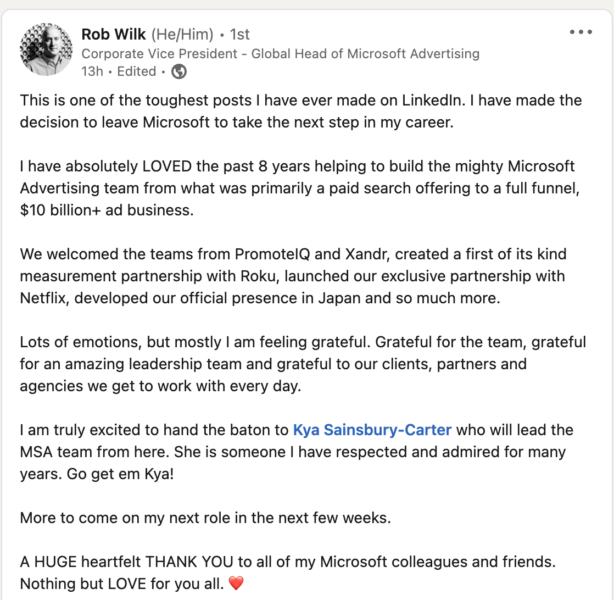
Enter Kya Sainsbury-Carter. Taking over for Wilk is Kya Sainsbury-Carter, Vice President, Microsoft Advertising.
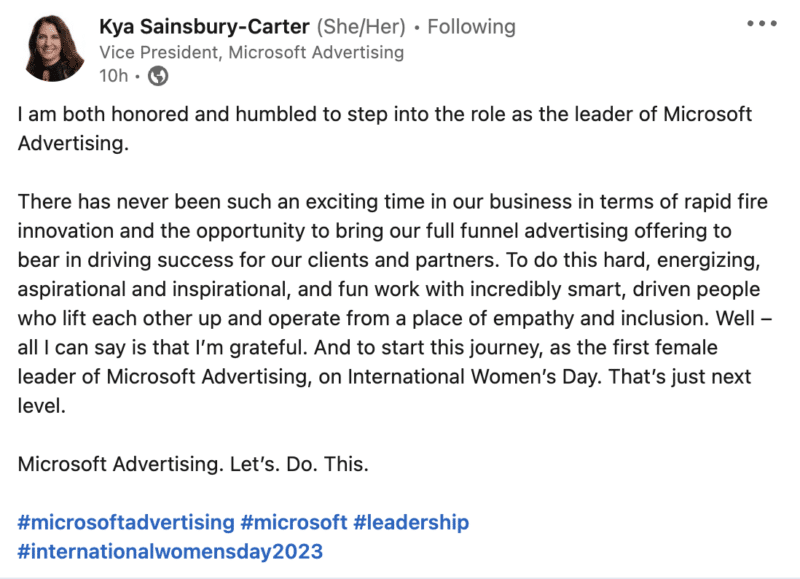
Why we care. In pure “International Women’s Day” fashion, a new woman leader could have a significant impact on the company’s strategy, product offerings, and overall direction. Sainsbury-Carter could bring in fresh ideas and perspectives, which can lead to changes in the company’s marketing approach and target audience.
Sainsbury-Carter is well-respected and has a strong track record with Microsoft Advertising. Ideally, this change could improve consumer trust in Microsoft and make it a more attractive partner for advertisers.
The post Global Head of Microsoft Advertising steps down appeared first on Search Engine Land.
Courtesy of Search Engine Land: News & Info About SEO, PPC, SEM, Search Engines & Search Marketing
Wednesday, March 8th, 2023
Did Google move too slowly with AI? Is that why Google is now scrambling to put AI into everything? Two new reports paint two entirely different pictures of Google before – and since – the launch of ChatGPT.
The Google search revolution that never happened. Two Google researchers created a chatbot that supposedly would “revolutionize the way people searched the internet and interacted with computers,” more than two years ago, as reported by The Wall Street Journal.
But executives were reportedly risk-averse, fearing putting out the AI product could hurt its $200 billion+ search advertising business and its reputation. And sure enough, Google took a significant reputational hit with its rushed Bard debut.
What are Google’s AI principles? One reason for Google’s slow approach could be due to its AI principles. Google believes AI applications should:
- Be socially beneficial.
- Avoid creating or reinforcing unfair bias.
- Be built and tested for safety.
- Be accountable to people.
- Incorporate privacy design principles.
- Uphold high standards of scientific excellence.
- Be made available for uses that accord with these principles.
So if Google had this AI technology ready more than two years ago, perhaps Google’s leadership felt it wasn’t as ready as those researchers did.
Lack of sourcing was another internal concern. In addition to safety and accuracy concerns, there was another big concern the WSJ points out:
“Integrating programs like LaMDA, which can synthesize millions of websites into a single paragraph of text, could also exacerbate Google’s long-running feuds with major news outlets and other online publishers by starving websites of traffic. Inside Google, executives have said Google must deploy generative AI in results in a way that doesn’t upset website owners, in part by including source links, according to a person familiar with the matter.”
Yet when Google showed off its new AI capabilities in search, there we no links to sources. And it caused a little bit of outrage.
And along came OpenAI’s ChatGPT and Google’s Code Red. Google co-founder Larry Page, a decade ago, warned that “incrementalism leads to irrelevance over time, especially in technology, because change tends to be revolutionary, not evolutionary.”
Love it or hate it, ChatGPT is a revolutionary technology. Shortly after the launch of ChatGPT in late November, Google declared a “code red” and sought help from Page and co-founder Sergey Brin. This was part of an effort to add chatbot features to Google Search this year.
Then, Google rushed to introduce Bard, it’s answer to ChatGPT, on Feb. 6. That was one day before Microsoft had planned to unveil the new Bing with ChatGPT.
Since that announcement, Google has tried to clarify that Bard is not search. The AI-powered chatbot features coming to search are based on similar technology, but Bard is a standalone product.
Google AI = the new Google Plus? Google is now reportedly “stuffing” generative AI into more products, according to Bloomberg:
“Some Google alumni have been reminded of the last time the company implemented an internal mandate to infuse every key product with a new idea: the effort beginning in 2011 to promote the ill-fated social network Google+. It’s not a perfect comparison—Google was never seen as a leader in social networking, while its expertise in AI is undisputed. Still, there’s a similar feeling.”
Google pushed back on this, saying much of Google’s internal efforts involve having Googlers test and improve Bard. One Googler also told Bloomberg:
- “There is an unhealthy combination of abnormally high expectations and great insecurity about any AI-related initiative.”
Why we care. Is Google panicking or moving too slowly? Both could be true – or the actual truth may be somewhere more in the middle, where Google is really living by its AI principles. Call it a slow rush – as Google can afford to sit back right now and watch and learn from Microsoft and other generative AI players and avoid any (further) costly mistakes.
The post Why a Google search revolution never happened appeared first on Search Engine Land.
Courtesy of Search Engine Land: News & Info About SEO, PPC, SEM, Search Engines & Search Marketing
Wednesday, March 8th, 2023
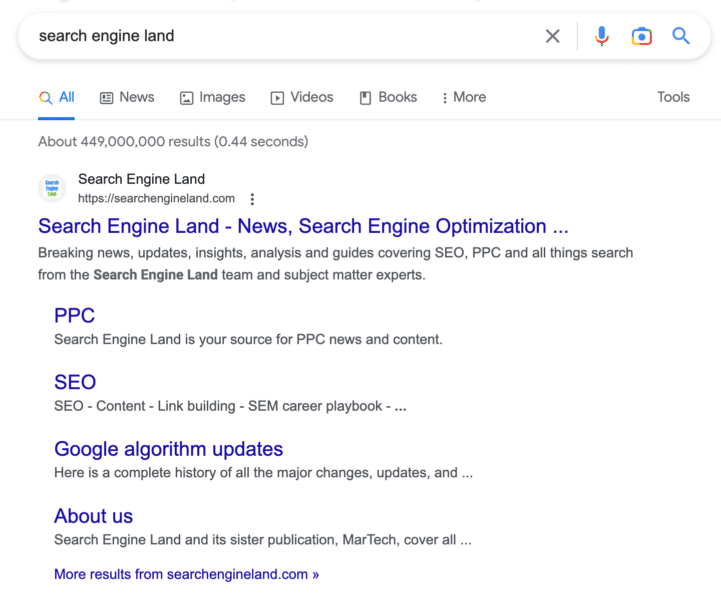
Google has rolled out the site names, updated favicons, and sponsored labels on desktop search after launching this on mobile search last October. Google has been testing the desktop version since last November, and now it is officially live both on desktop and mobile search.
What it looks like. Here is a screenshot of the new Sitename and updated favicon in desktop search – note, the old interface just had the URL, not the site name or the favicon:
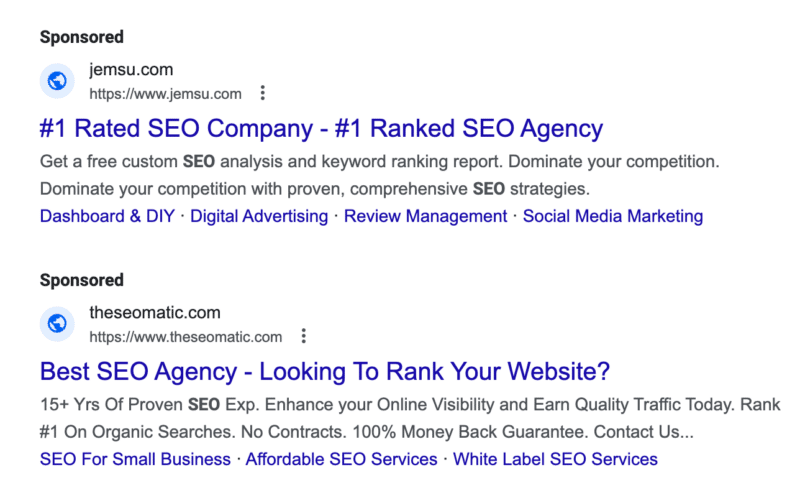
Here is the “sponsored” label that replaces the “ad” label:
Controlling site names. Google back in October explained that Google Search uses a number of ways to identify the site name for the search result. But if you want, you can use structured data on your home page to communicate to Google what the site name should be for your site. Google has specific documentation on this new Site name structured data available over here.
Upgrading the favicon. Google also recommended revisiting the documentation for favicons for the latest best practices. Google is now also suggesting you provide an icon that’s at least 48 pixels and follows the existing favicon guidelines.
Ads. This is also rolled out to the Google search ads on desktop, so the size of the site name, favicons, and also the ad label will be more prominent in mobile search. In fact, Google rolled out the “Sponsored” label in mobile search last October and today on desktop, officially replacing the “Ads” label from January 2020.
Why the change. Google last October said the difference is to help provide “even more information about the sites that you see so you can feel confident about the websites you visit.” Here is more from Google on these changes:
Why we care. With any change to Google Search and the design of the search results, searchers may click differently. So monitor your click-through rate in Google Search Console and see if you need to make changes to your site name and/or favicon to make any improvements to your click-through rate from Google Search.
This change went live on mobile months ago, but there is a possibility that it can impact desktop search differently.
The post Google rolled out new site names, favicon and sponsored label on desktop search appeared first on Search Engine Land.
Courtesy of Search Engine Land: News & Info About SEO, PPC, SEM, Search Engines & Search Marketing
Wednesday, March 8th, 2023
Google’s “Tag Coverage” feature now allows you to see which tags are firing on your website and which ones are not. You can access this summary from the Google tag sections of both Google Ads and Google Analytics, and through Google Tag Manager.
What Tag Coverage is. Tag Coverage is a feature within Google Tag Manager that allows you to see a summary of which tags are firing and which ones are not. This feature is especially useful if you’re working with a complex website that has multiple tags or if you’ve recently made changes to your website’s tags and want to make sure everything is working correctly.
The Tag Coverage summary displays the following information:
- Total number of tags on the website
- Number of tags that are currently firing
- Number of tags that are not firing
- Number of tags that have no data
- Number of pages with no tags
How to Use Tag Coverage. To access the Tag Coverage feature in GTM, follow these steps:
- Sign in to your GTM account.
- Select the container you want to view.
- Click “Tags” from the left-hand navigation menu.
- Click “Tag Coverage” from the sub-menu.
Once you’ve accessed the Tag Coverage summary, you can start using it to analyze your tags. Here are a few ways you can use this feature:
- Identify which tags are not firing: The Tag Coverage summary will show you which tags are not firing. If you notice that a tag isn’t firing, you can troubleshoot the issue to make sure that the tag is configured correctly.
- Analyze the data: The summary will also show you which pages have tags and which ones don’t. You can use this information to identify pages that may need additional tracking or to optimize your tags for certain pages.
- Optimize your tags: If you notice that certain tags are not firing on your website, you can use this information to optimize your tags. This may involve tweaking the tag configuration or adding additional triggers to ensure that the tag is firing correctly.
Dig deeper. Read the full article on Google’s Tag Manager Help documentation.
Why we care. The Tag Coverage feature in Google Tag Manager is an essential tool for advertisers who wants to ensure that their tags are firing correctly on their website. By using this feature, you can identify issues with your tags and optimize your tracking to ensure that you’re getting the data you need.
The post Maximizing your website tracking with Google’s Tag coverage summary appeared first on Search Engine Land.
Courtesy of Search Engine Land: News & Info About SEO, PPC, SEM, Search Engines & Search Marketing
Wednesday, March 8th, 2023

In the modern e-commerce world, personalization is everything. It’s what engages customers, inspires them, and keeps them coming back. As the global economy moves closer to a recession, it’s important to apply those personalization tactics to your tried-and-true customer communication strategy — email marketing.
First-party data is key to driving successful email personalization initiatives. Download this guide from Bloomreach and learn how to leverage first-party data to power your email campaigns to drive revenue and increase customer lifetime value.
Visit Digital Marketing Depot to download Recession-ready Your Marketing by Doubling Down on Email.
The post Recession-ready your marketing strategy with personalized email campaigns appeared first on Search Engine Land.
Courtesy of Search Engine Land: News & Info About SEO, PPC, SEM, Search Engines & Search Marketing
Tuesday, March 7th, 2023
Google has added more than 70 different types of Local Services Ads (LSAs) to their network.
How LSAs work. Local Services Ads allow you to showcase your services prominently at the top of Google’s search results pages and attract high-quality phone calls, messages, and appointment bookings in your selected areas. You can efficiently monitor your leads’ performance, including listening to call recordings with potential customers, and manage your listings, such as updating your hours and service areas.
You can manage LSAs either on desktop or through the Local Services Ads mobile app, which is available on both Android and iOS platforms. Prospective customers can easily access your business information, read reviews, view photos, and directly contact you by calling, messaging, or booking an appointment, all within your ad.
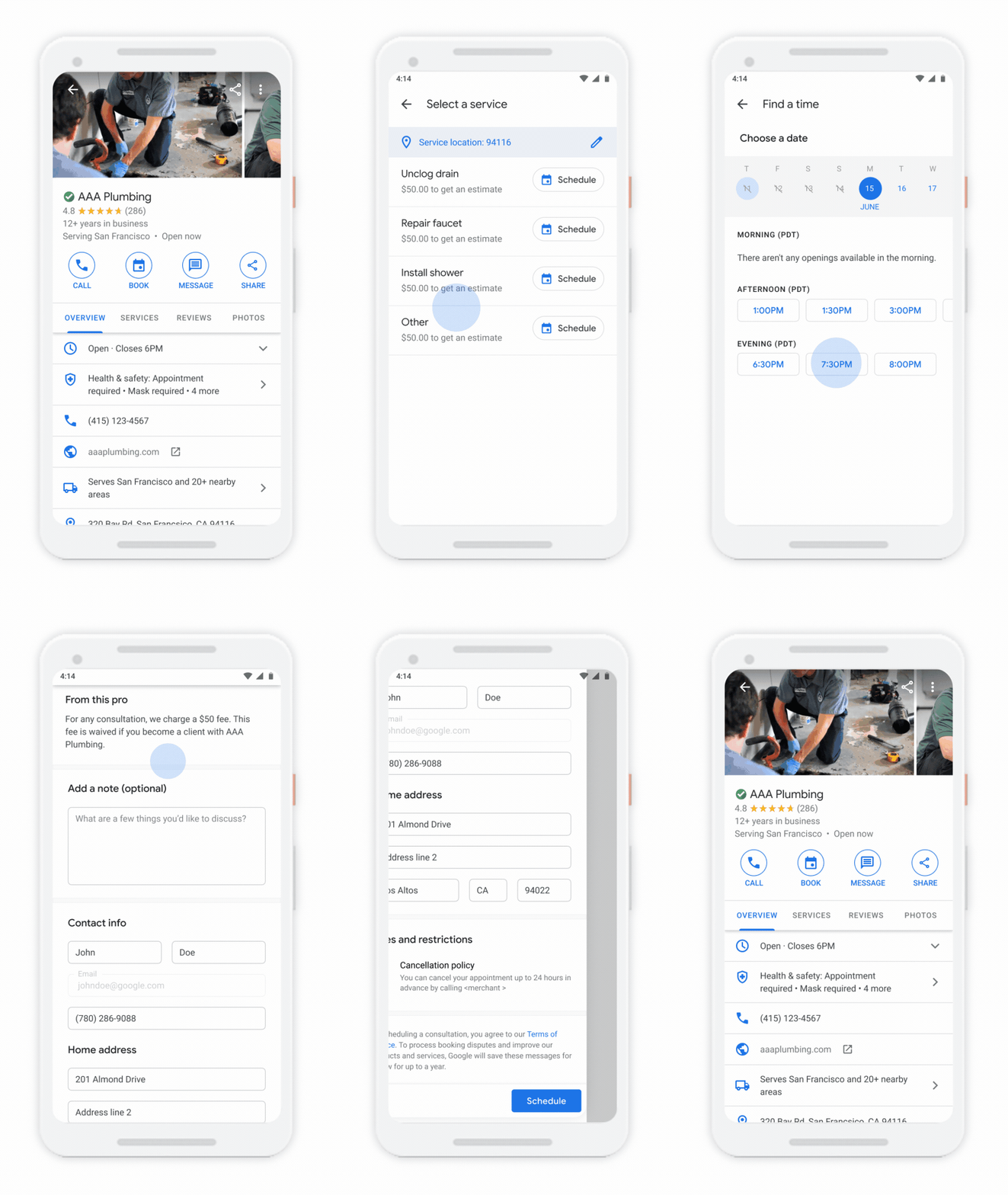
New businesses. The new business types include beauty schools, pet boarding facilities, flooring companies, and more.
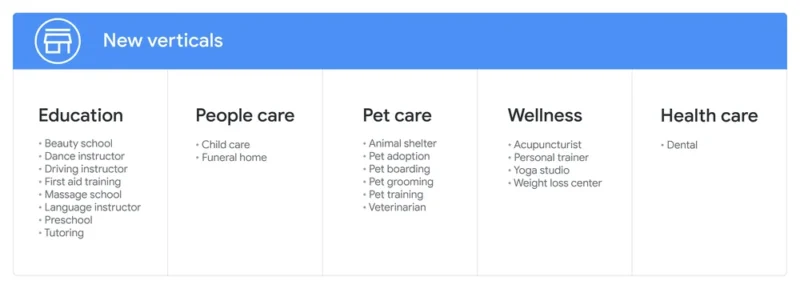
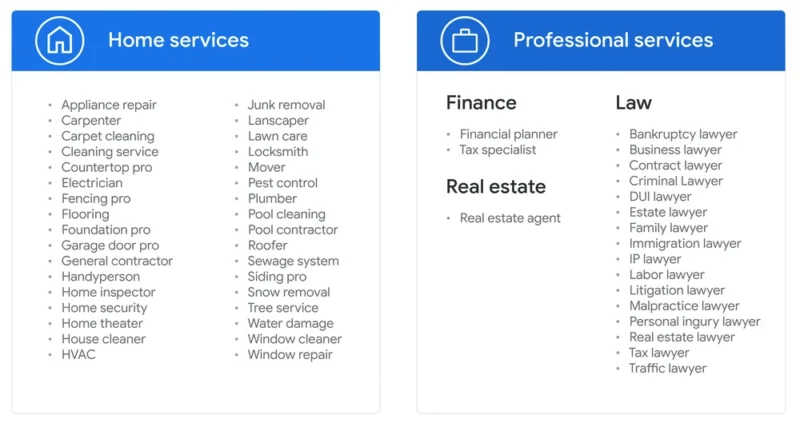
Dig deeper. read the announcement from Google here.
Why we care. LSAs provide an effective way to reach potential customers who are searching for their services on Google. By appearing at the top of search results pages, LSAs can help advertisers and brands increase their visibility and attract high-quality leads.
The post Google expands Local Service Ads to more than 70 new businesses appeared first on Search Engine Land.
Courtesy of Search Engine Land: News & Info About SEO, PPC, SEM, Search Engines & Search Marketing
Tuesday, March 7th, 2023
SEM stands for “search engine marketing.” It is the process of combining SEO and PPC strategies to create a holistic internet marketing strategy that drives traffic and visibility through search engines based on a user’s search query.
Originally called “search engine marketing,” the shorter phrase “search marketing” is often used as the umbrella term for SEO and PPC.
But today, much of our industry defines SEM as digital advertising strategies where you pay to have your website featured on the search engine result pages (SERPs).
SEO and PPC are both forms of marketing on search engines. Organic search marketing and paid search marketing are different channels, but the goals and platforms are ultimately the same.
To attract the right visitors to your website so they can purchase, sign up for a service, or find an answer they are looking for.
For those who want to learn more about either SEO or PPC, see our guides below:
Let’s talk about SEM more…
Why is SEM, search engine marketing, important?
SEM is important because it is a data-driven approach to targeting your audience across all online channels and touchpoints.
Search marketing is an effort on any search engine. This means you should care about “other” search engines, from YouTube to TikTok to Amazon to Apple to Yelp.
Anything that can be searched for can be optimized. If it’s a platform that lets users search, and there’s advertising on it – that’s SEM.
When marketers combine SEO and PPC, it creates an all-inclusive integrated approach to internet marketing that drives results.
Just let the data show you.
Auberge Resorts saw over a 126% return on investment from PPC and an 86% increase in organic traffic when merging SEO and PPC into one strategy.
An energy supplier increased website traffic by 71% and received 86% more leads in Google Ads when pairing SEO and PPC together.
Coney Island Picnic needed a new website with ecommerce capability. With a new website redesign, the website ranked for over 775 keywords and went from 0 organic traffic sessions to 2,500 organic sessions per month in the first six months.
On the paid side, the highest ROAS of 22.68x came from branded search campaigns, sparking increased brand awareness.
Overall, Coney Island Picnic launched a new brand and sold over 1,000 products in just 90 days by combining SEO and PPC.
Combining SEO and PPC is like adding fuel to the fire of your SEM strategy. You gain better insights into conversion rates, keyword performance and estimated traffic.
Seven types of SEM
When SEM originated in the early 2000s, SEM = PPC + SEO.
Today, SEO and PPC have matured and grown into subsets of strategies.
Now, there are seven types of search engine marketing – organic, paid, local, voice, image, shop, and social search.
And there are eight types of PPC ads – paid search, display, remarketing, video, social, shopping, Gmail, and Amazon advertising.
SEO
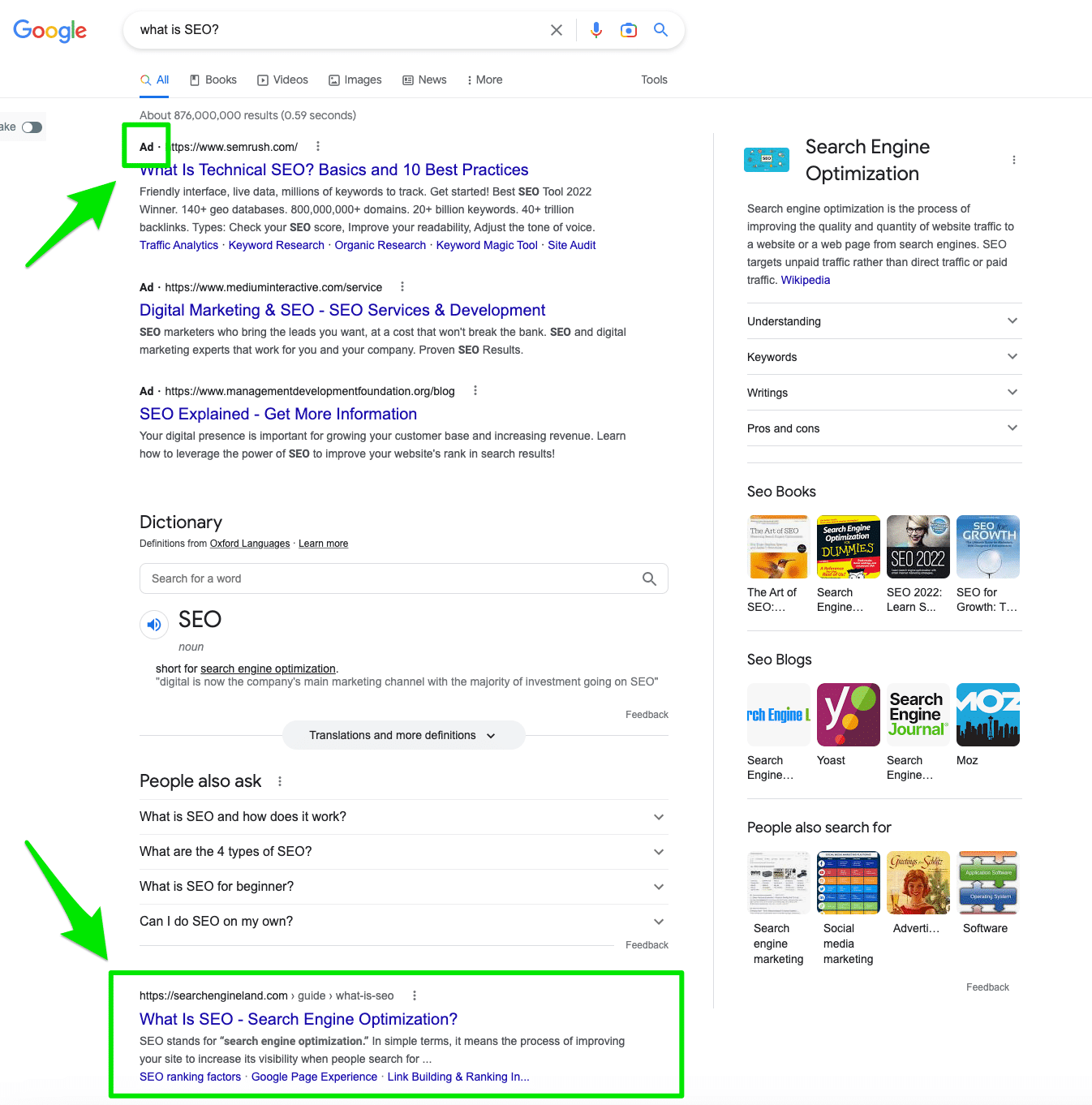
SEO stands for search engine optimization. SEO is the method used to improve the overall quality of a web page to search engines. You’re earning traffic through unpaid or free search engine results.
SEO is just limited to search engines like Bing and Google. SEO is for all search engines like YouTube, Pinterest, Amazon, TikTok, etc.
PPC
PPC, pay-per-click, is when an advertiser pays each time a user clicks on their ad. You’re buying traffic through paid search listings.
Search engines can range from Google and Bing to Amazon to TikTok or YouTube.
What is the difference between SEM vs. SEO vs. PPC?
If we’re considering the original description of SEM, SEM is an internet marketing strategy combining both paid and organic tactics to increase your website’s visibility in search engines.
SEO is the “organic” part of SEM. SEO is sometimes called “free” traffic driven by relevant content and healthy website performance.
PPC is the “paid” part of SEM.
The key differences between SEO and SEM are:
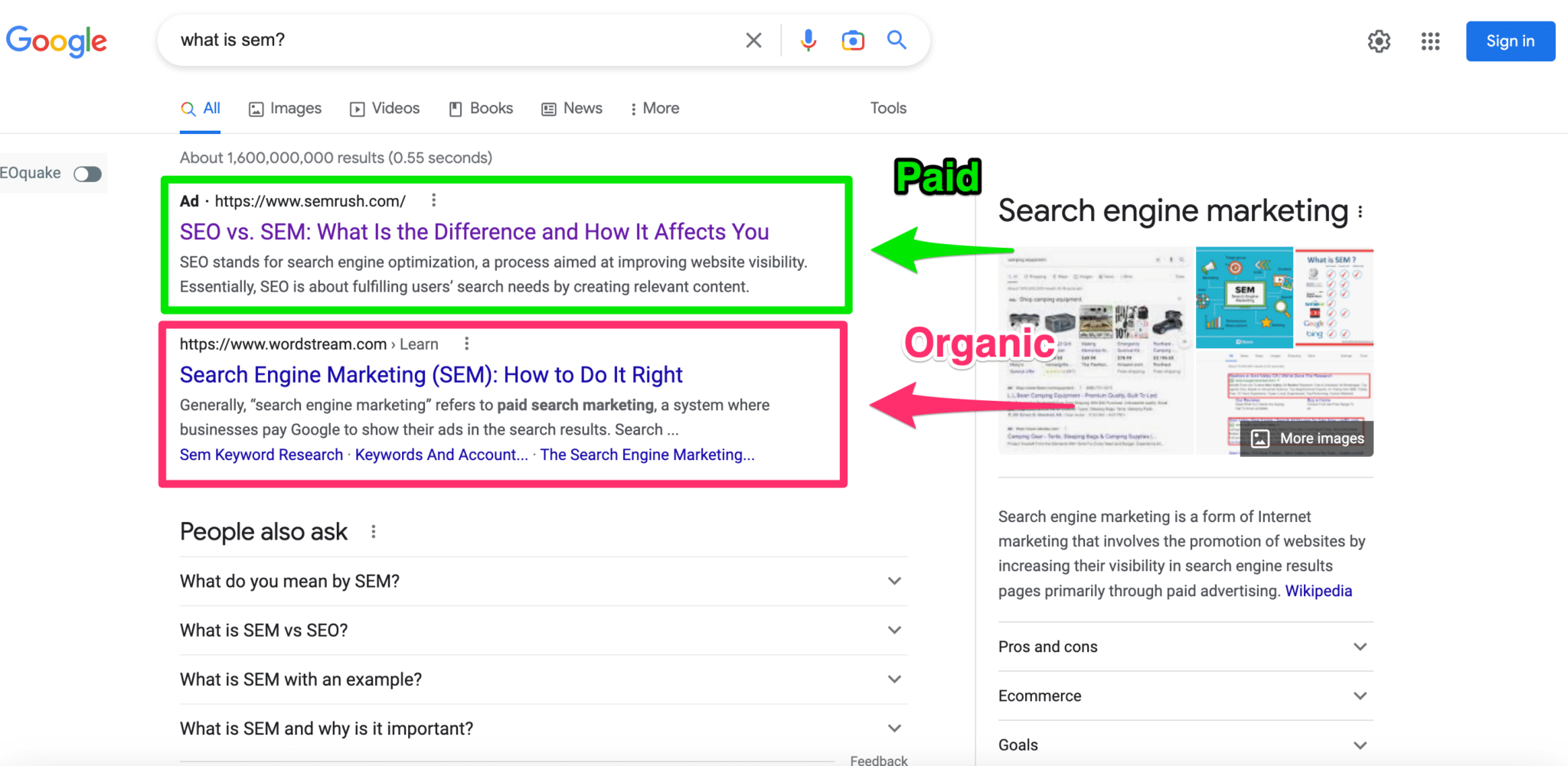
- SEM requires both SEO and PPC to be called SEM. PPC is transparent and must state it is paid advertising. PPC is shown displaying the word “Ad” at the top.
- PPC requires payment for every click (CPC, cost-per-click) or impression (CPM, cost-per-thousand impressions).
- PPC can immediately show ROI, whereas SEO is a long game.
- PPC is faster to test than SEO.
Are there any similarities between SEM vs. SEO vs. PPC?
There is a lot of crossover between SEM, PPC, and SEO.
Both SEO and PPC share these common similarities in creating an SEM strategy:
- Increase the visibility of your website across search engines by optimizing your target audience and search queries.
- Drive higher-quality traffic to your website by encouraging searchers to click on your website through paid ads or organic search results.
- Deep knowledge and expertise in keywords and target audience to better understand the intent behind the search query and how your competition looks at the search term.
- Requires A/B testing and experimentation to support a long-term strategy and ROI.
PPC vs. SEO? Or PPC + SEO?
It depends on your business objective. PPC is better for quick, short-term gains and paired with SEO for a more extensive, long-term strategy. SEO is ideal for a more holistic, long-term approach encompassing UX, content, PR, etc.
You need both SEO and PPC to succeed with an SEM strategy. PPC should be used to kickstart a campaign and experiment to understand your target audience better. It should complement your SEO strategy. SEO should be considered in all website and internet marketing tactics.
OK, so now you’re probably even more confused. So, let’s back this up.
SEM ≠ PPC? The confusing history
Let’s squash this here and now. SEM, search engine marketing = half SEO and half PPC. SEM is not the same as PPC, pay-per-click. You need both the paid and unpaid traffic to make up SEM.
We’re bringing back the true definition of SEM. Let me walk you through this.
SEM is about bringing both SEO and PPC together to promote your website or brand by increasing visibility on search engines through paid and organic traffic.
So, why is there confusion about what SEM means?
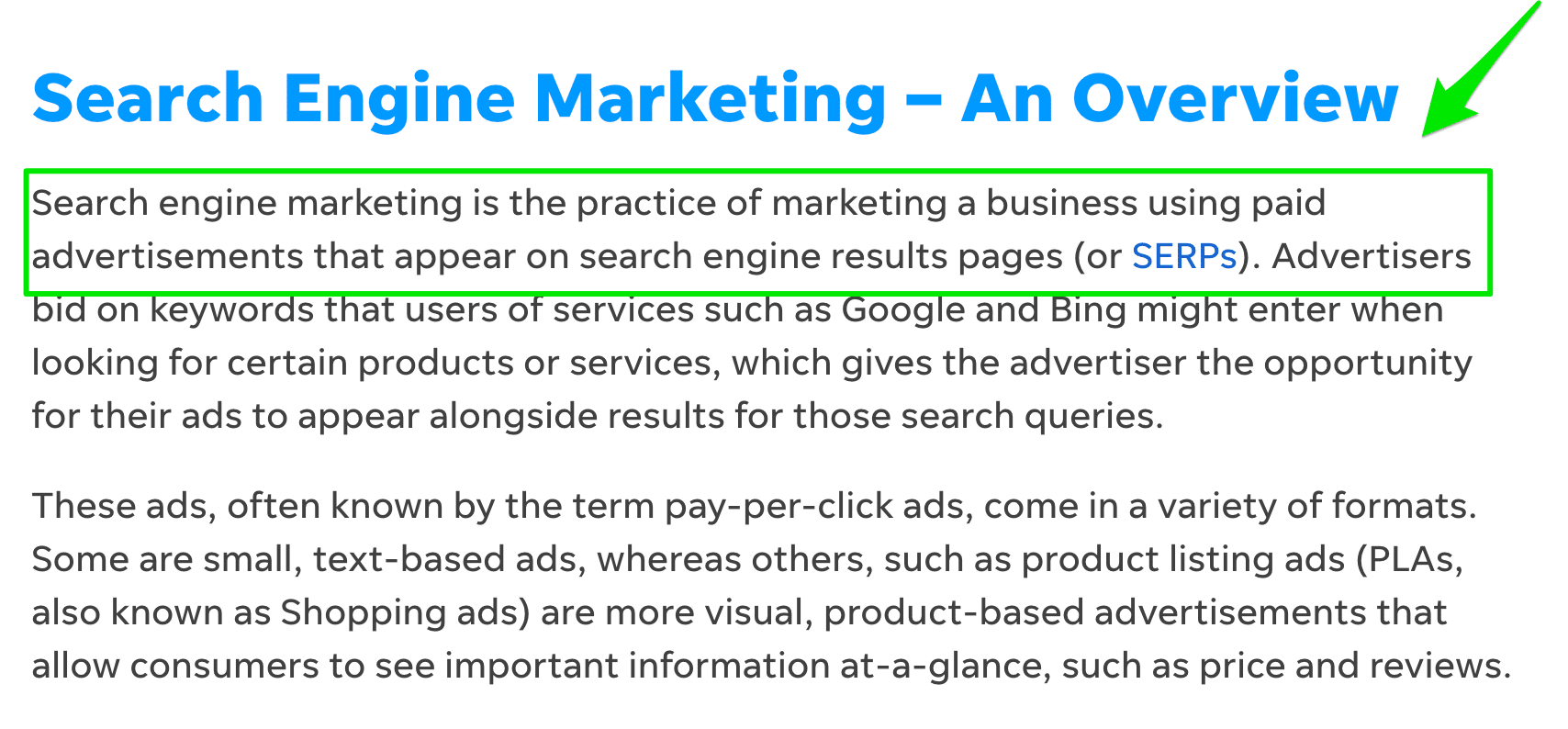
That’s because Wikipedia and some top-ranked resources on the subject define SEM as an internet advertising model that drives paid traffic to your website from search engines like Google, Bing, YouTube, Pinterest, TikTok, etc.
Sound familiar?
That’s because it’s the exact same definition as PPC.
Yes, we know that can be confusing – but that’s how things have evolved. Our article, Does SEM = SEO + CPC Still Add Up? explains the evolution in depth.
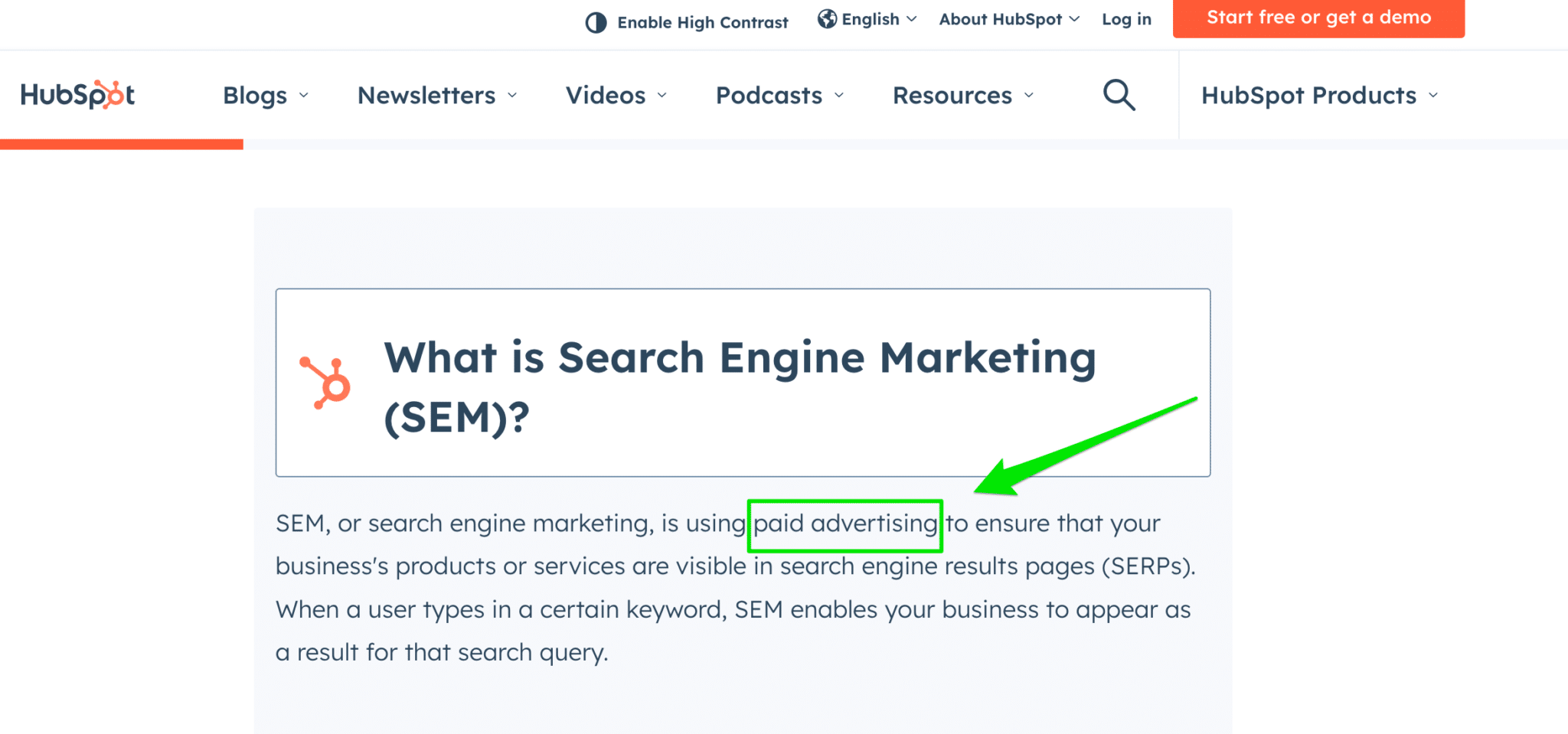
Our industry muddled the waters with articles like this describing SEM as pay-per-click.
And again, articles like this describing SEM as paid advertising.
In the early 2000s, search engine marketing, or SEM, was all about combining SEO and PPC into one strategy. SEM was understood as the playground where SEO and PPC play together to benefit all marketing humankind.
Search Engine Land founder and now-Googler Danny Sullivan popularized the term “SEM” in 2001, stating:
“My suggestion was that there should be an umbrella term, ‘search engine marketing,’ that covered both major activities: SEO + PPC.”
SEM worked to cover optimization for all activities in search engines, whether it be optimizing crawlers, managing paid listings or directories. It encompassed all marketing activity in search engines.
When Sullivan popularized “search engine marketing” in 2001, marketing (and life) was much different back then.
Think about it…
The first CAPTCHA was introduced and utilized by PayPal in 2001.
Google introduced the Google Search Appliance in 2002.
WordPress was released in 2003.
Facebook launched in 2004.
Google Maps was live in 2005.
Marketing has changed. The last I heard the term “SEM,” Fubu was still popular. That’s why the true definition of SEM has been lost.
It’s time to revitalize and bring back SEM.
Let’s all collectively decide to stop calling SEM by its counterpart PPC. You need an SEM strategy to compete in today’s competitive marketing landscape.
It’s kind of like the time some SEO professionals wanted to rebrand SEO “Search Engine Optimization” into “Search Everywhere Optimization” or “Search Experience Optimization.” But not.
The reality is SEM, PPC, and SEO today are just marketing.
Sullivan reiterated this point in 2014:
Doing SEO, SEM or social media marketing isn't "growth hacking." It's just marketing. Problem is some marketers & start-ups don't get that.
— Danny Sullivan (@dannysullivan) January 4, 2014
The person putting together an SEM strategy is likely the CMO or VP of Marketing putting together their overall marketing strategy.
Get the daily newsletter search marketers rely on.
<input type=”hidden” name=”utmMedium” value=”“>
<input type=”hidden” name=”utmCampaign” value=”“>
<input type=”hidden” name=”utmSource” value=”“>
<input type=”hidden” name=”utmContent” value=”“>
<input type=”hidden” name=”pageLink” value=”“>
<input type=”hidden” name=”ipAddress” value=”“>
Two examples of SEM strategies in the wild
Example 1: Asana Rebel
First, I discovered a sponsored ad for Asana Rebel on Instagram.
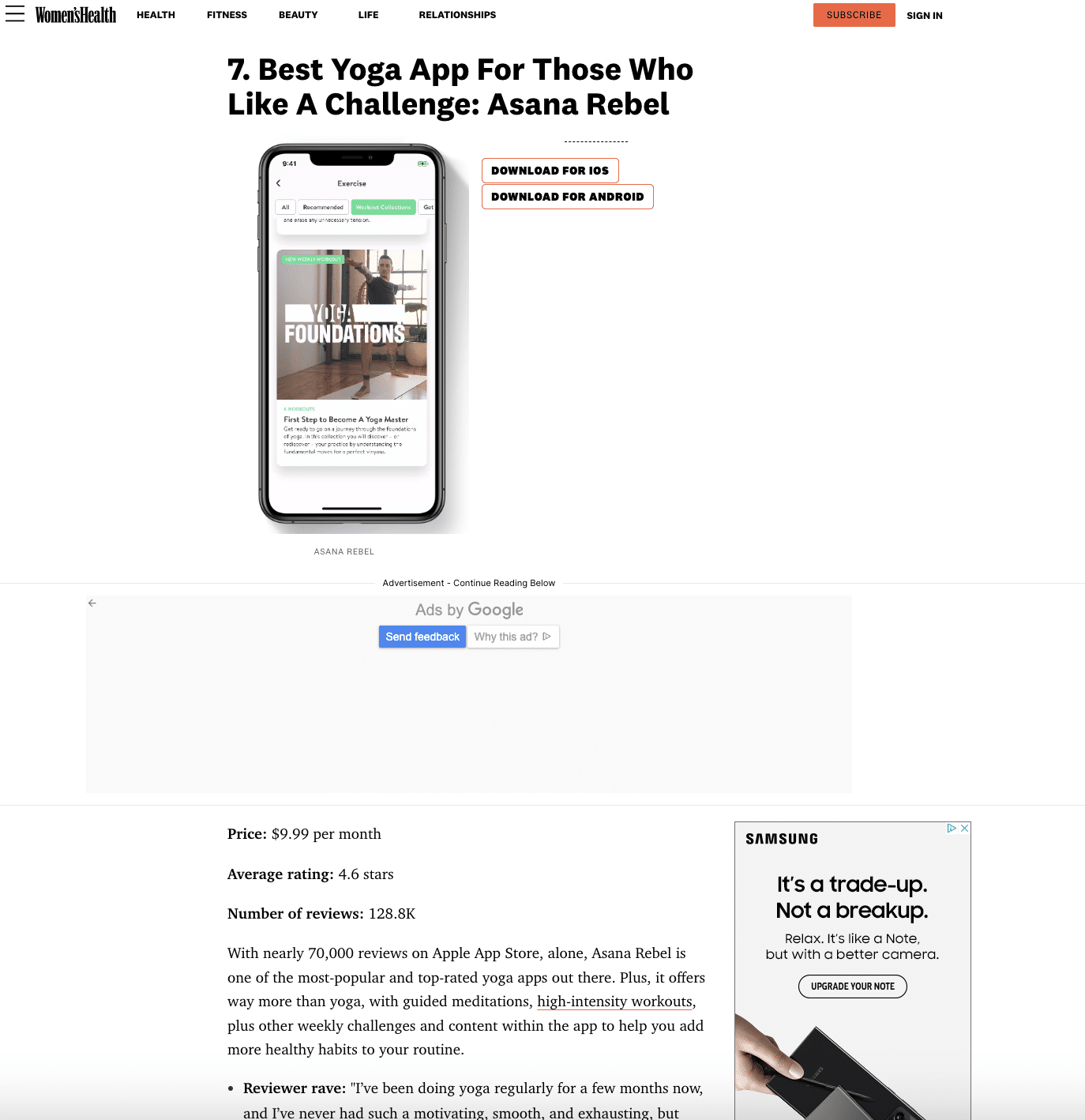
Then, I read a Women’s Health Magazine review about the best yoga apps. This is a naturally created review based on star ratings in the app stores.
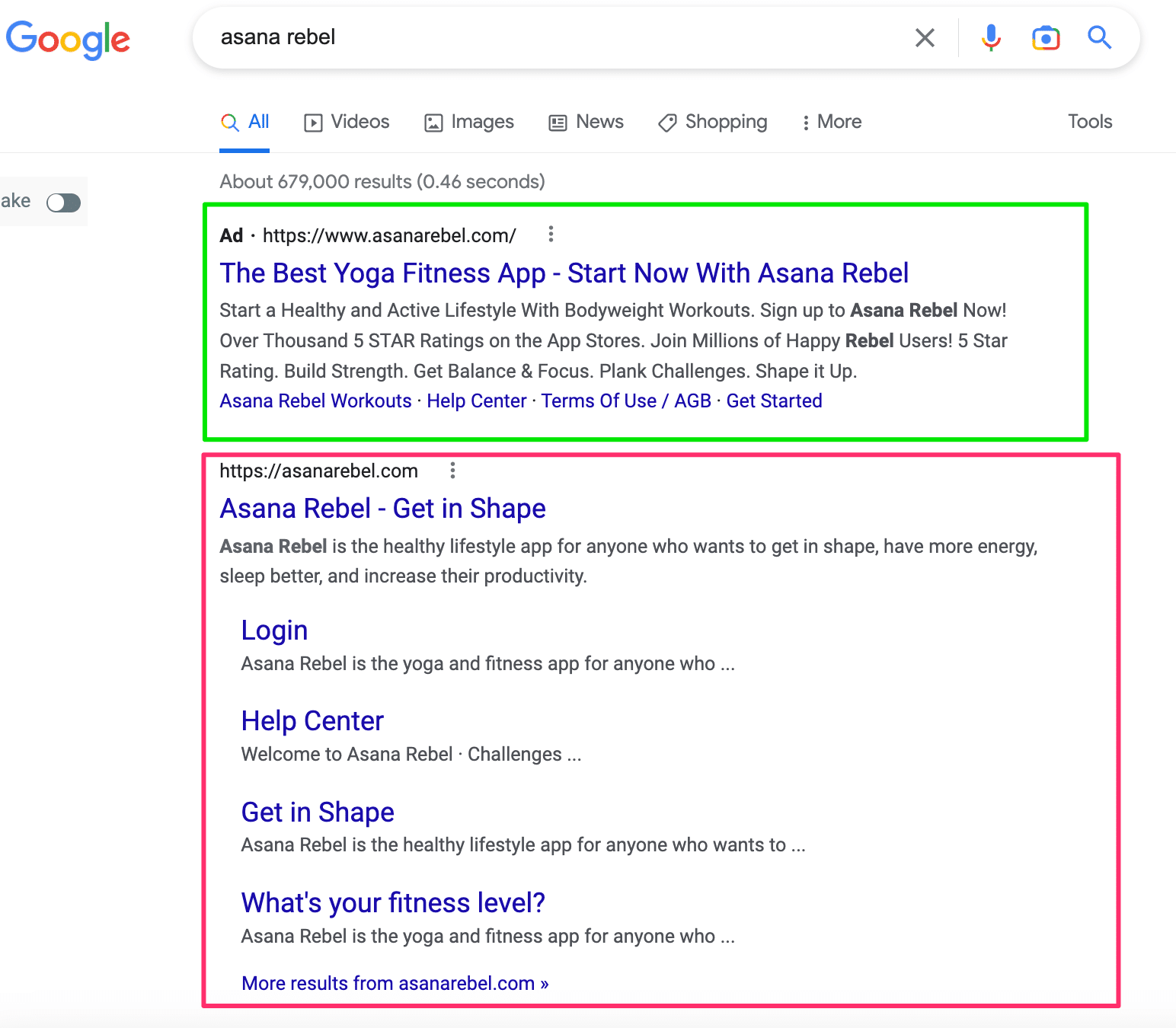
Finally, I decided to search for Asana Rebel to learn more, where we can see a paid ad at the top and the organic result at the bottom.
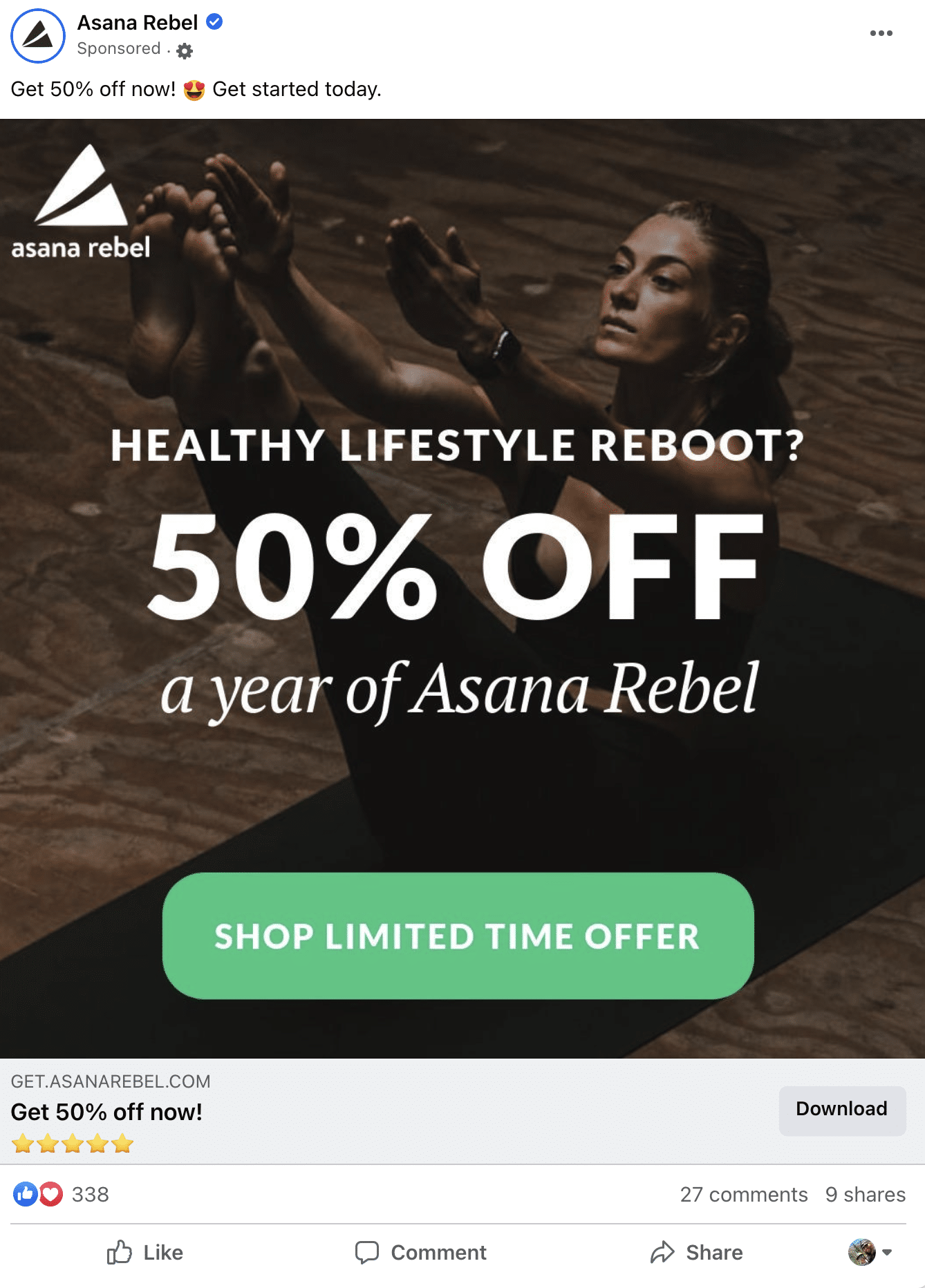
About three days later, I was served this remarketing ad on Facebook.
Example 2: MindManager
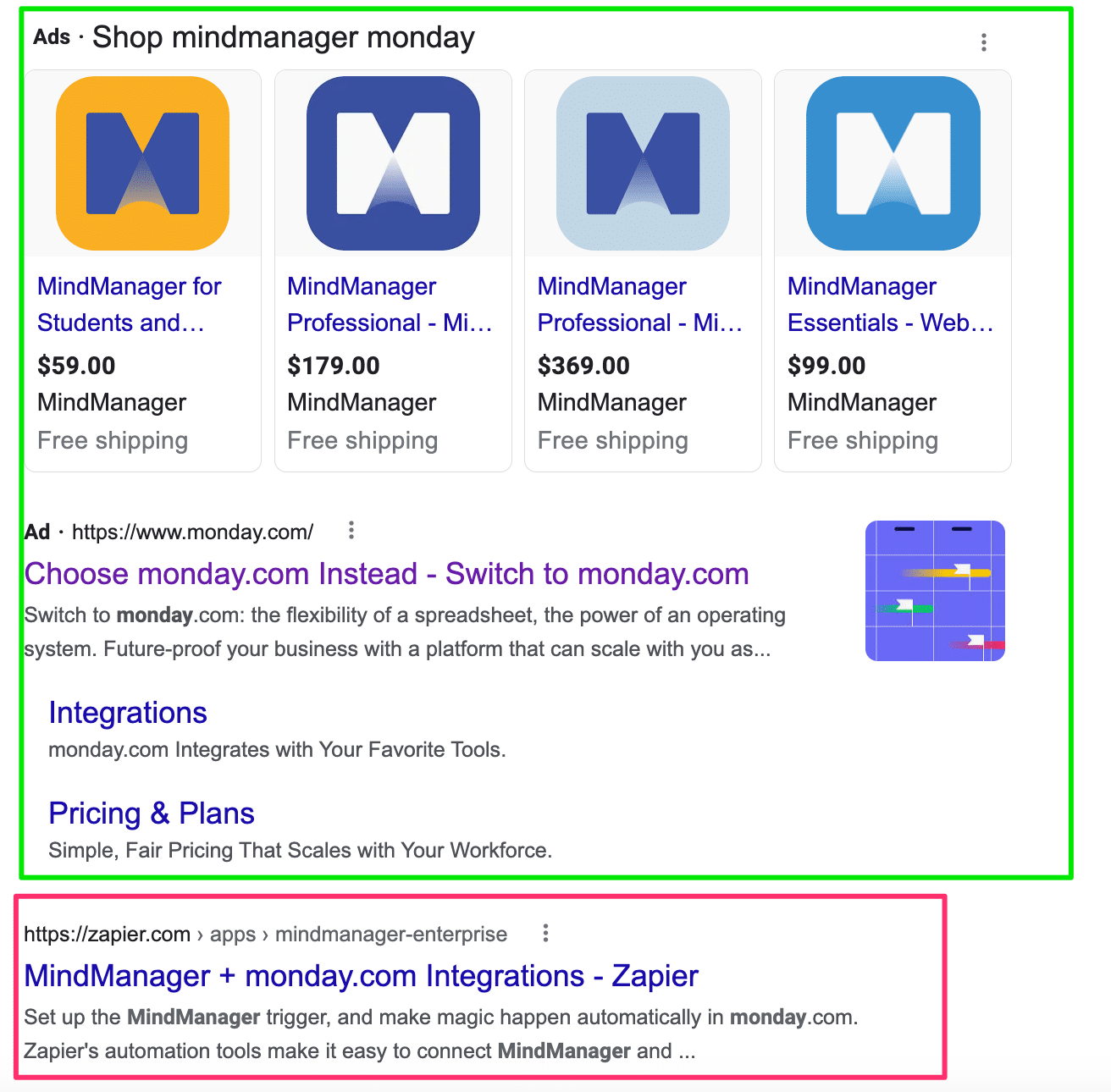
First, I started searching for MindManager on Google.
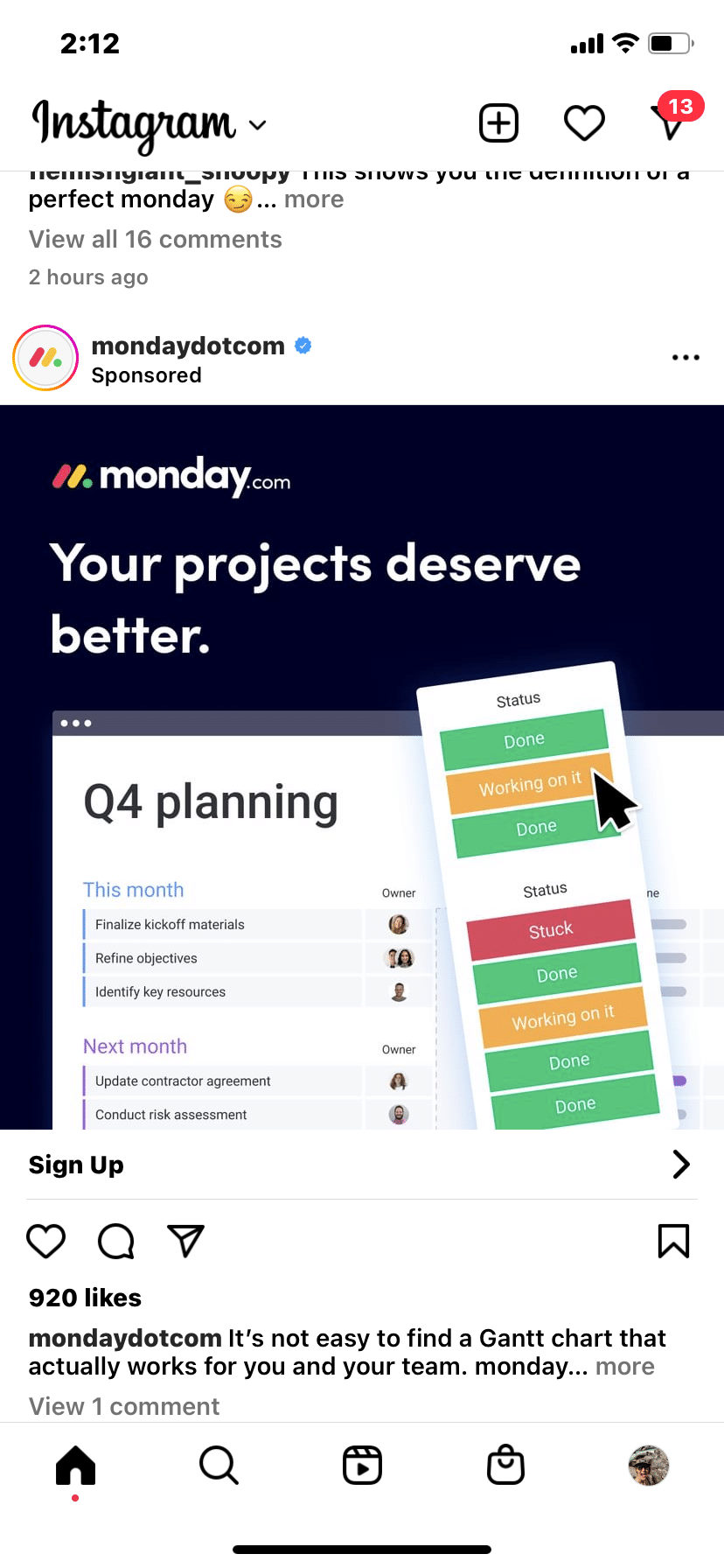
I clicked on the ad for Monday.com. And within 30 minutes, I was served a remarketing ad on Instagram.
Then, I stumbled across a paid review for Monday.com by Crazy Egg. This is likely thanks to a paid partnership or affiliate marketing team.
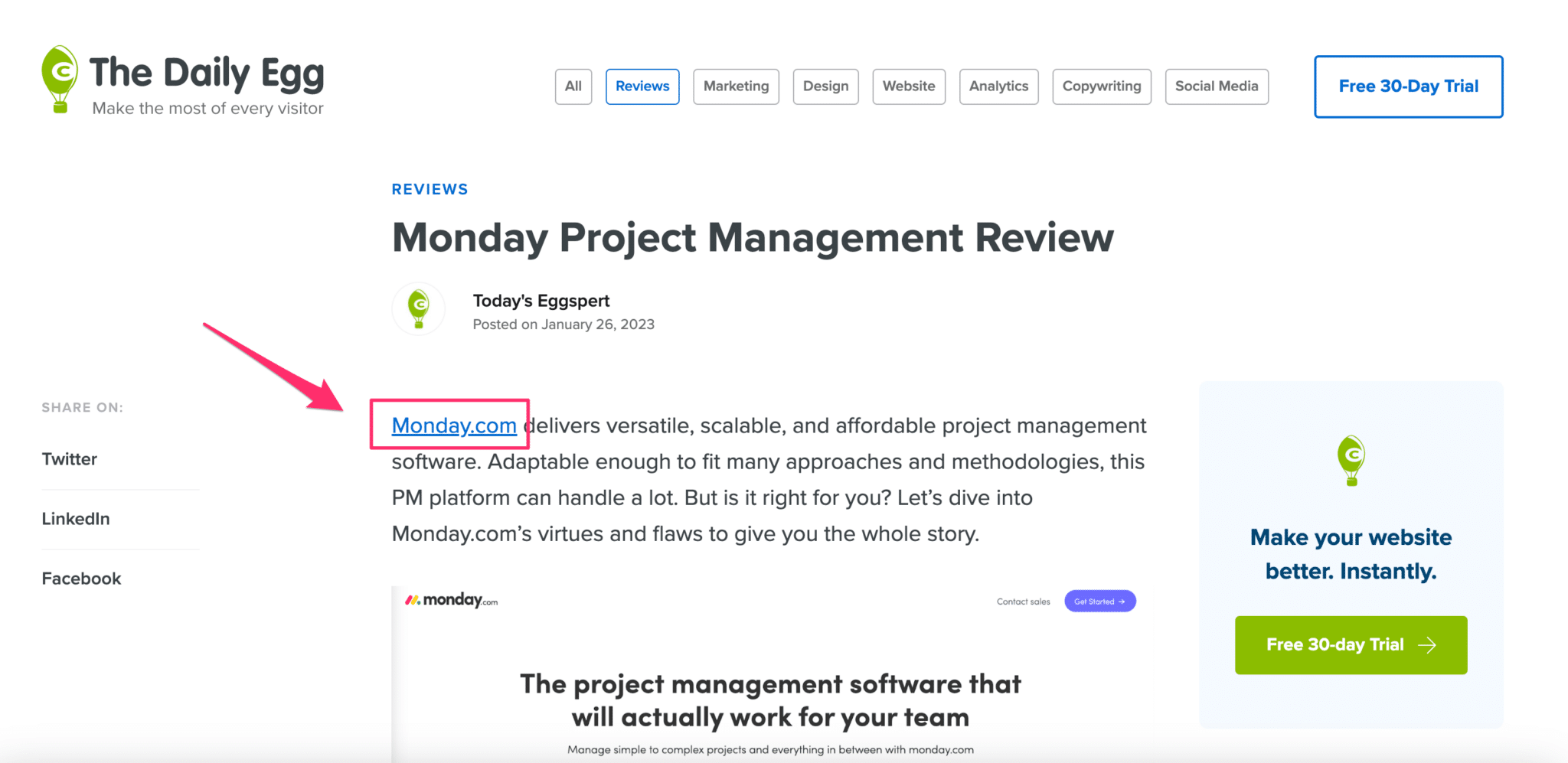
These two examples are what a holistic SEM strategy should be by combing SEO, paid, social, affiliates, PR, etc.
Careers in SEM
It’s as rare to find an individual managing all SEM as it is to find a Spider-Gwen comic.
However, marketers with a skillset in both SEO and PPC do exist. I was surprised to learn that 30% of SMX attendees reported doing both PPC and SEO.
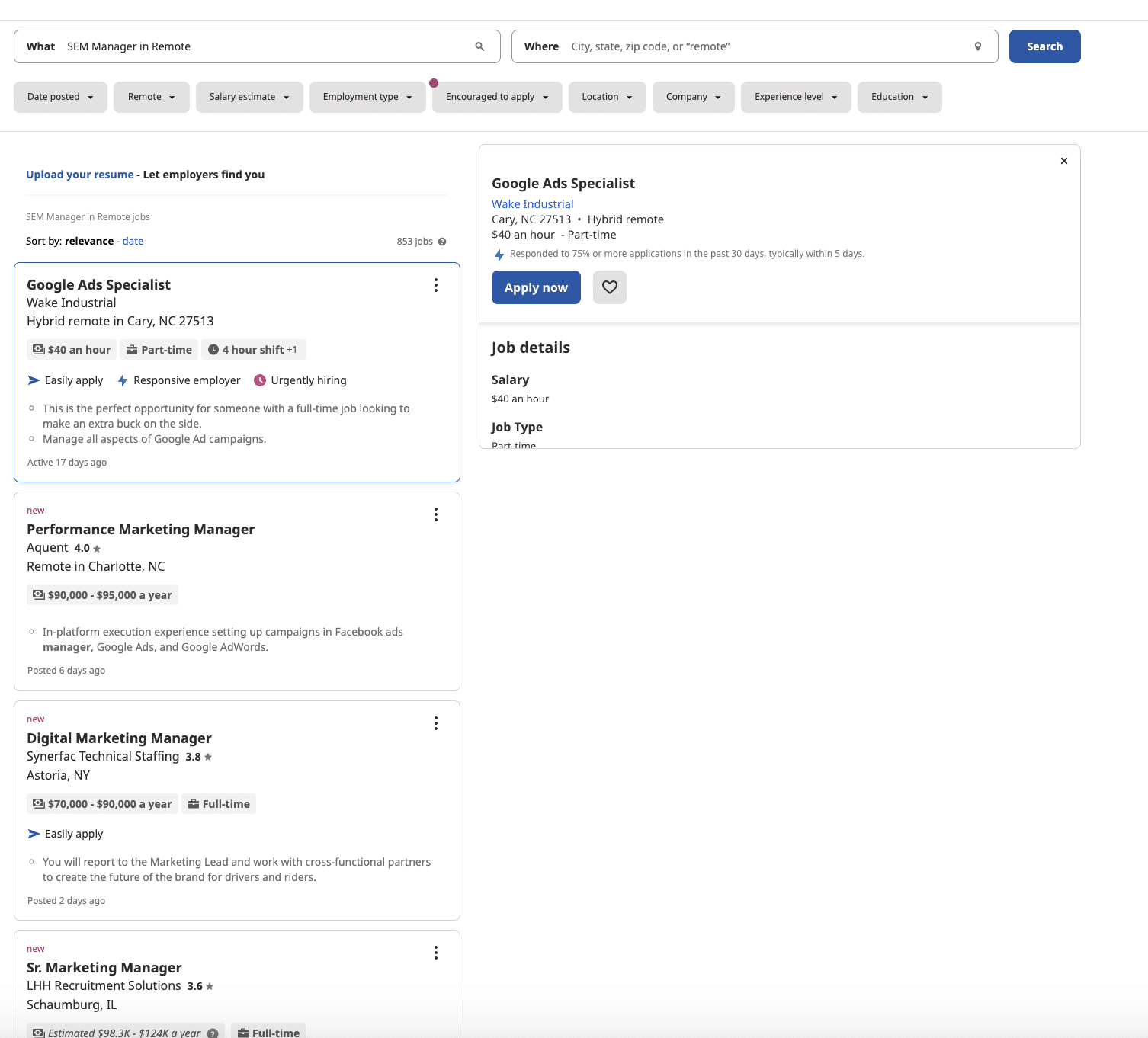
But, when you type in SEM in Indeed, there are no jobs with “SEM” in the title.
SEM jobs are now “Directors of Marketing.” SEM is in-demand.
From 2021 to 2022, average salaries in PPC have grown by approximately 6.5% in the U.S., 5% in Canada, 6% in the U.K., and 11% in Europe.
And the global SEO market is supposed to grow by $122.11 billion by 2028. That’s a big jump compared to the $65 billion in 2016.
As Sergey Alakov, SEO Manager for Catalyst Canada, put it perfectly:
A single sale is worth millions of dollars for them.
A well-paid SEO/SEM person's salary just becomes a rounding error.
— Sergey Alakov (@sergey_alakov) July 21, 2021
If you’re looking for a job in SEM, check out SEM career playbook: Overview of a growing industry and The latest jobs in search marketing here on Search Engine Land.
The future of marketing is SEM
SEM can revolutionize every part of marketing. With AI and automation at the forefront of daily topics, PPC and SEO professionals will have fewer levers to pull to control where money is being spent.
And with first-party data, SEM professionals will become less dependent on data to back up decisions. Now, companies will need to rely more on the individual’s expertise and the understanding of how SEM fits into the bigger picture. SEM is the future of marketing.
Stay up to date on all things search marketing
Search Engine Land has been covering search marketing since 2006. In addition to covering the latest news, Search Engine Land publishes contributed articles from a diverse group of subject matter experts featuring helpful search marketing tips, tactics, trends and analysis.
You can sign up to receive Search Engine Land’s free email newsletter, featuring a roundup of the latest search marketing news and insights, every weekday.
The post What is SEM – Search Engine Marketing? appeared first on Search Engine Land.
Courtesy of Search Engine Land: News & Info About SEO, PPC, SEM, Search Engines & Search Marketing
Tuesday, March 7th, 2023
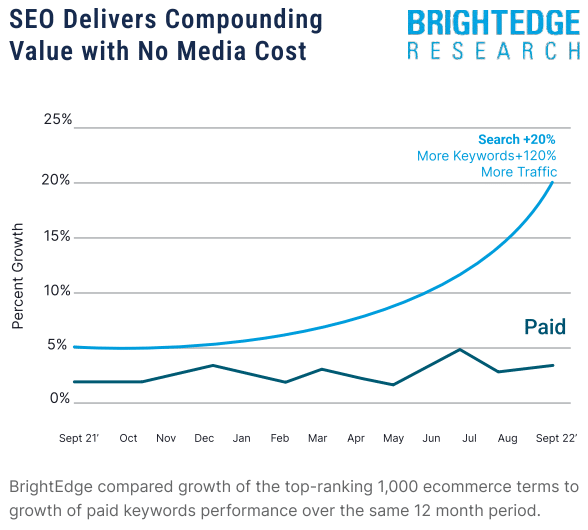
Building authority has a compounding effect on how brands perform in organic search. And the acceleration of AI in search is only increasing the importance of developing authority, trust and credibility as a signal on the topics or areas you are known for or known to be helpful for.
That’s according to new research from enterprise SEO platform BrightEdge.
Why we care. Economic uncertainty has kept marketing budgets flat (or even reduced) and put greater focus on SEO this year. But that also means SEOs are being asked to drive more revenue and conversions without a greater investment in SEO.
58% plan to use AI for content and SEO in 2023. Search marketers want to use AI-generated content – but they just haven’t quite figured out how yet, according to BrightEdge:
- Only 10% of marketers use AI for SEO content generation, but 58% aim to this year.
One reason for that 10% figure is likely an abundance of caution. ChatGPT and similar tools can generate content quickly – but quality remains a concern due to AI “hallucination” and many SEOs worry Google will be able to detect and penalize AI content.
Google has warned against using AI-generated content for years – although that guideline has softened in 2023. Now, Google cares less whether a human or AI writes your content, as long as your content is helpful to people and not created to manipulate the search results.
Why this change? Most likely because Google plans to soon add generative AI to its search experience.
90% of organizations prioritizing SEO in 2023. Building up brand expertise and authority delivers what BrightEdge refers to as “compounding value.” Basically, this means the websites that are winning in their industry/niche continue to increase their share of search.
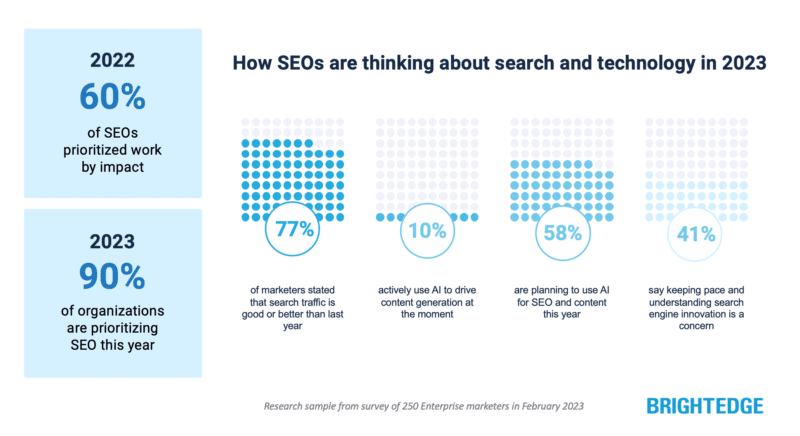
- “As a result of SEOs focusing on high value, impactful work success in 2022, we are seeing more buy-in from organizations, with 90% of organizations prioritizing SEO in 2023,” said BrightEdge CEO Jim Yu.
For every $1 put into SEO today, organizations can find compounded benefits over time, resulting in greater ROI, Yu said.
This reminds me of Mike Grehan‘s classic “filthy linking rich” concept – that popular sites get more popular. Or, the better you do at SEO, the better you perform in organic search. Do you rank in Position 1 because you have all those links or do you have all those links because you rank in Position 1?
Top 4 enterprise SEO concerns in 2023. BrightEdge also revealed the challenges SEOs are focusing on:
- Search engine updates (41%)
- Changing consumer behavior (33%)
- Technology advancements (14%)
- Competitors (12%)
Dig deeper. Organizations Are Turning to SEO Now, BrightEdge whitepaper.
The post Use of AI for SEO and content to grow 5x this year appeared first on Search Engine Land.
Courtesy of Search Engine Land: News & Info About SEO, PPC, SEM, Search Engines & Search Marketing
Tuesday, March 7th, 2023
Google has confirmed that the February 2023 product reviews update is now finished rolling out. This update announced on February 21, 2023, has officially completed rolling out over a 14-day period.
February 2023 product reviews update. As a reminder, the February 2023 product reviews update started to roll out at about 5 p.m. ET on February 21. This update took 14 days to roll out after it was announced. So this update started on February 21 and lasted through March 7, 2023.
This update is similar to past product reviews update, but it was more widespread, impacting more languages than just English. This also impacted Spanish, German, French, Italian, Vietnamese, Indonesian, Russian, Dutch, Portuguese, and Polish languages.
Why we care. If your website offers product review content, you will want to check your rankings to see if you were impacted. Did your Google organic traffic improve, decline or stay the same?
Long term, you are going to want to ensure that you put a lot more detail and effort into your product review content. Make it unique so it stands out from the competition on the web.
If you need more advice on this update, see our previous story over here.
Previous product review updates. This is the sixth release of the product reviews update and was released on February 21 at about 5pm ET. The first product reviews update was launched on April 8, 2021, the second was launched on December 1, 2021, the third has been released on March 23, 2022, and the fourth was released on July 27, 0222, and the fifth was released on September 20, 2022.
The post Google February 2023 product reviews update is finished rolling out appeared first on Search Engine Land.
Courtesy of Search Engine Land: News & Info About SEO, PPC, SEM, Search Engines & Search Marketing